Real Linux.
Real desktop.
in your pocket
Breadstick turns Samsung DeX and Android's desktop mode into a full Debian desktop where every Linux app gets its own window. No root, no emulators. Just a real computer, wherever you go.
Unpacking code… done 🥖
you@breadstick:~$ ▍
Not a remote desktop.
A real one.
Other tools squash Linux into one scrolling screen. Breadstick gives every app its own window, and a system you actually own.
Native freeform windows
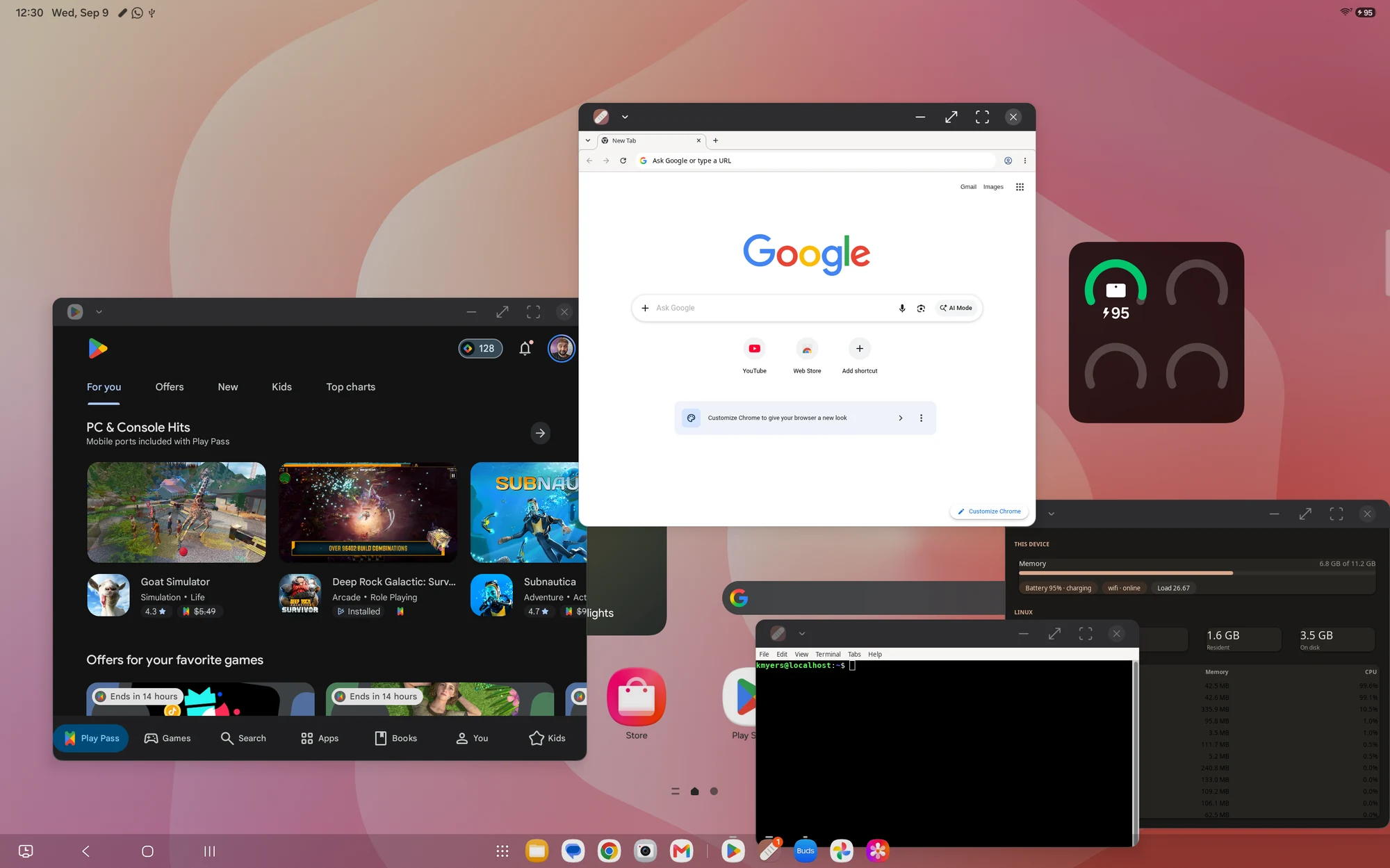
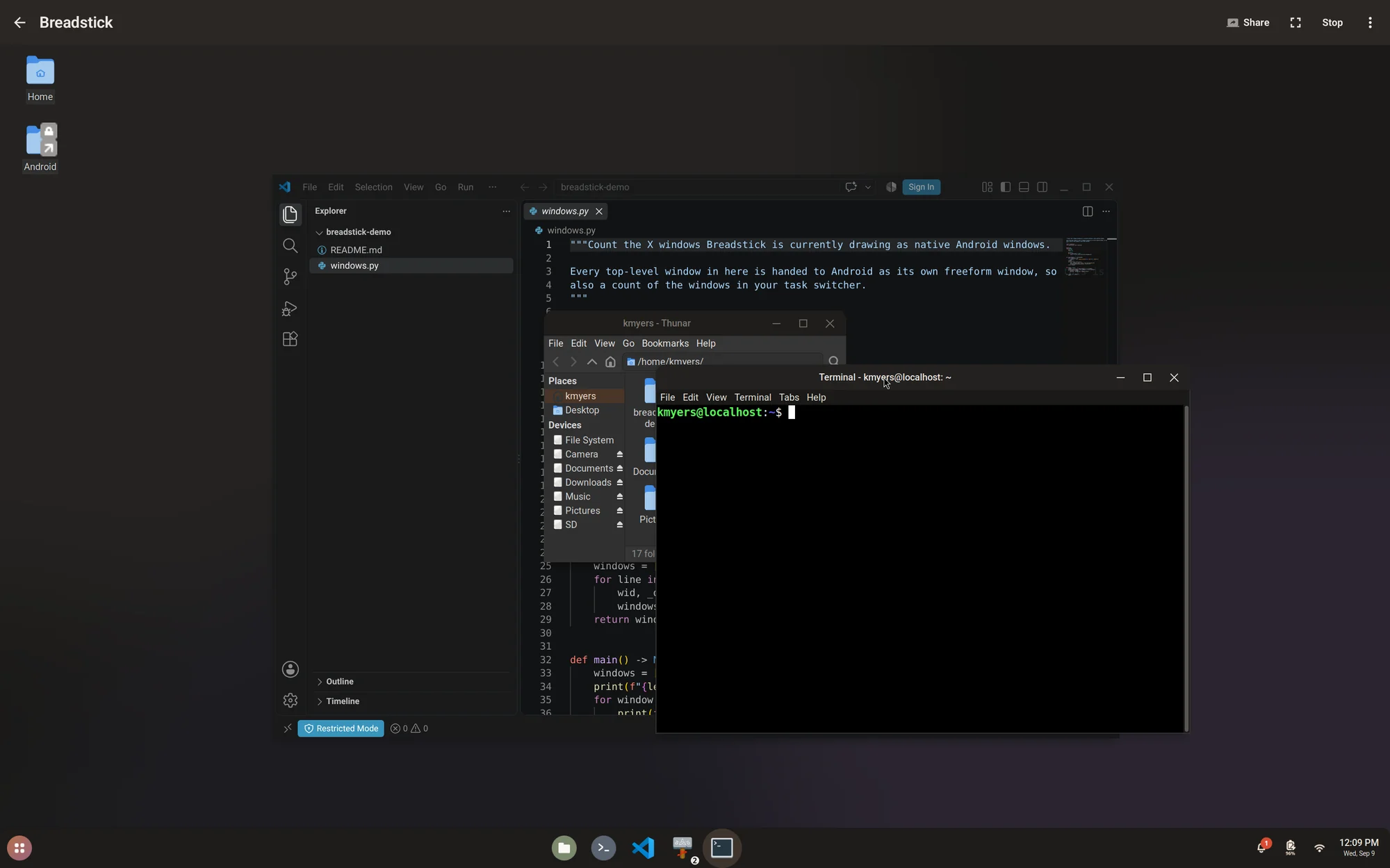
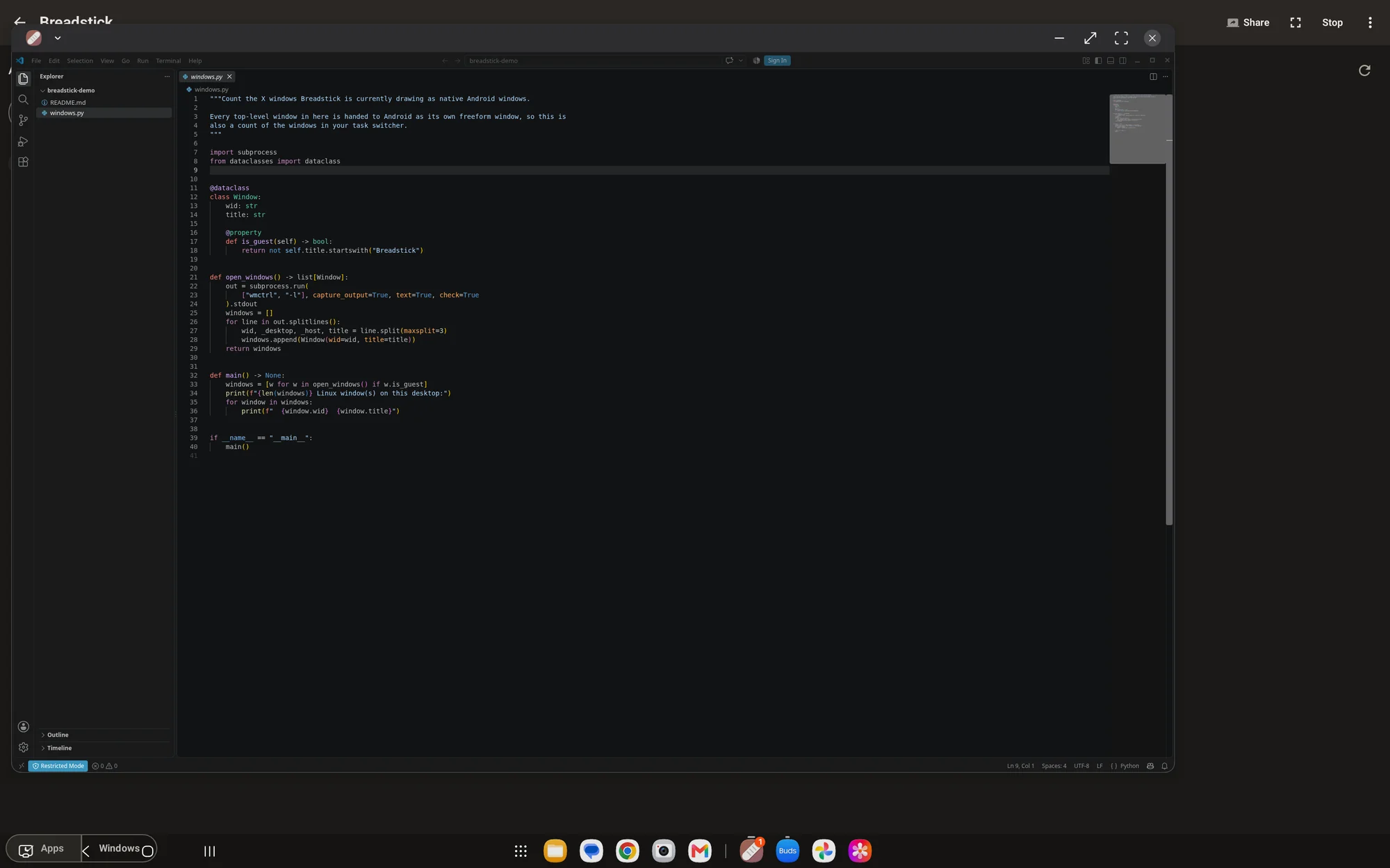
Every Linux app is its own desktop window. Move it, resize it, snap it, alt-tab to it. Just like a native app.
No root, no risk
Runs fully unprivileged in a container. Nothing to unlock, no warranty to void, your Android stays untouched.
A real Debian system
Actual apt. Install your editor, your browser, your whole toolchain. It's Linux, not a locked-down toy.
Deep host integration
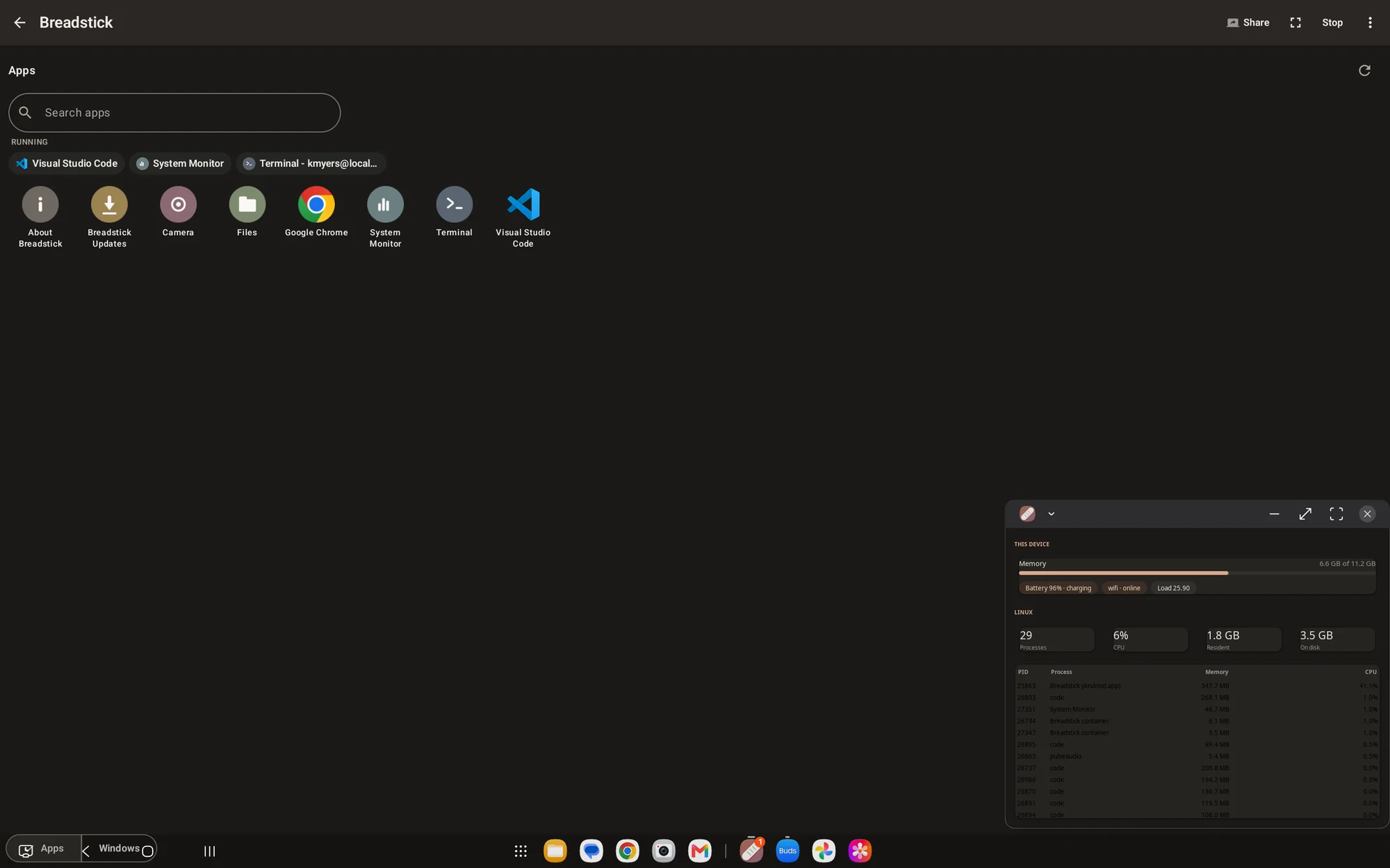
Shared clipboard, files, audio, and live device status, battery and network included, bridged straight into Linux.
One-tap app packs
VS Code, Firefox, LibreOffice and more. Curated bundles install with one tap, so a full dev machine is minutes away.
Always fresh
Your system updates itself from the Breadstick repository. New features arrive without ever reinstalling.
Phone to workstation,
in three steps.
Install the app
One install from Google Play. No PC, no adb, no flashing, no bootloader to unlock, and nothing to undo later.
Unpack Linux
On first launch it sets up a complete Debian environment, ready to go in minutes.
Open your apps
Linux apps run as real, movable windows on the phone or tablet itself. Dock to an external display with DeX or Android desktop mode and you get the full workstation.
Not a mockup.
A tablet.
Every image below is a real screen capture from a Galaxy Tab S11 Ultra running Breadstick. Nothing is streamed from a server and nothing is staged.
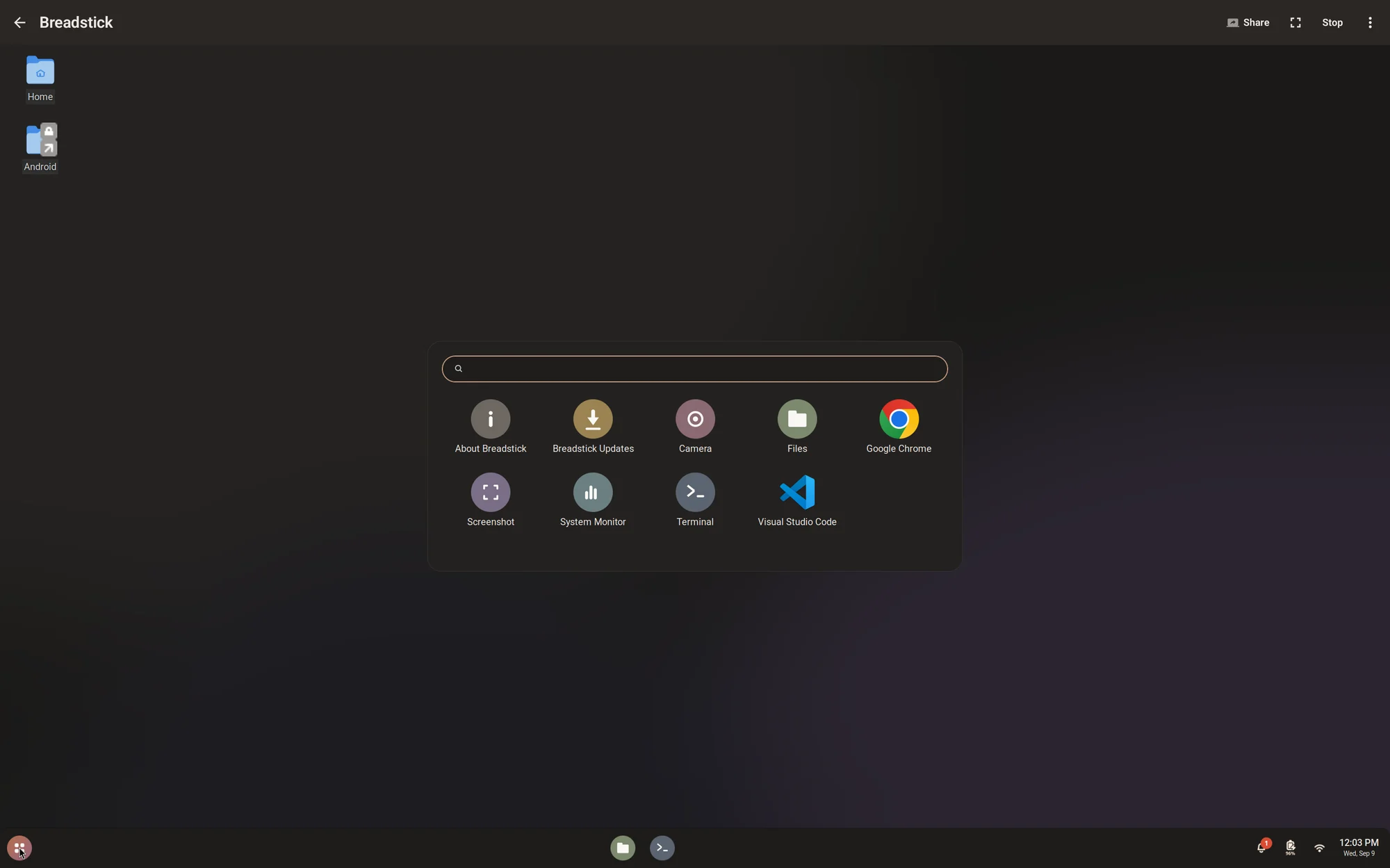
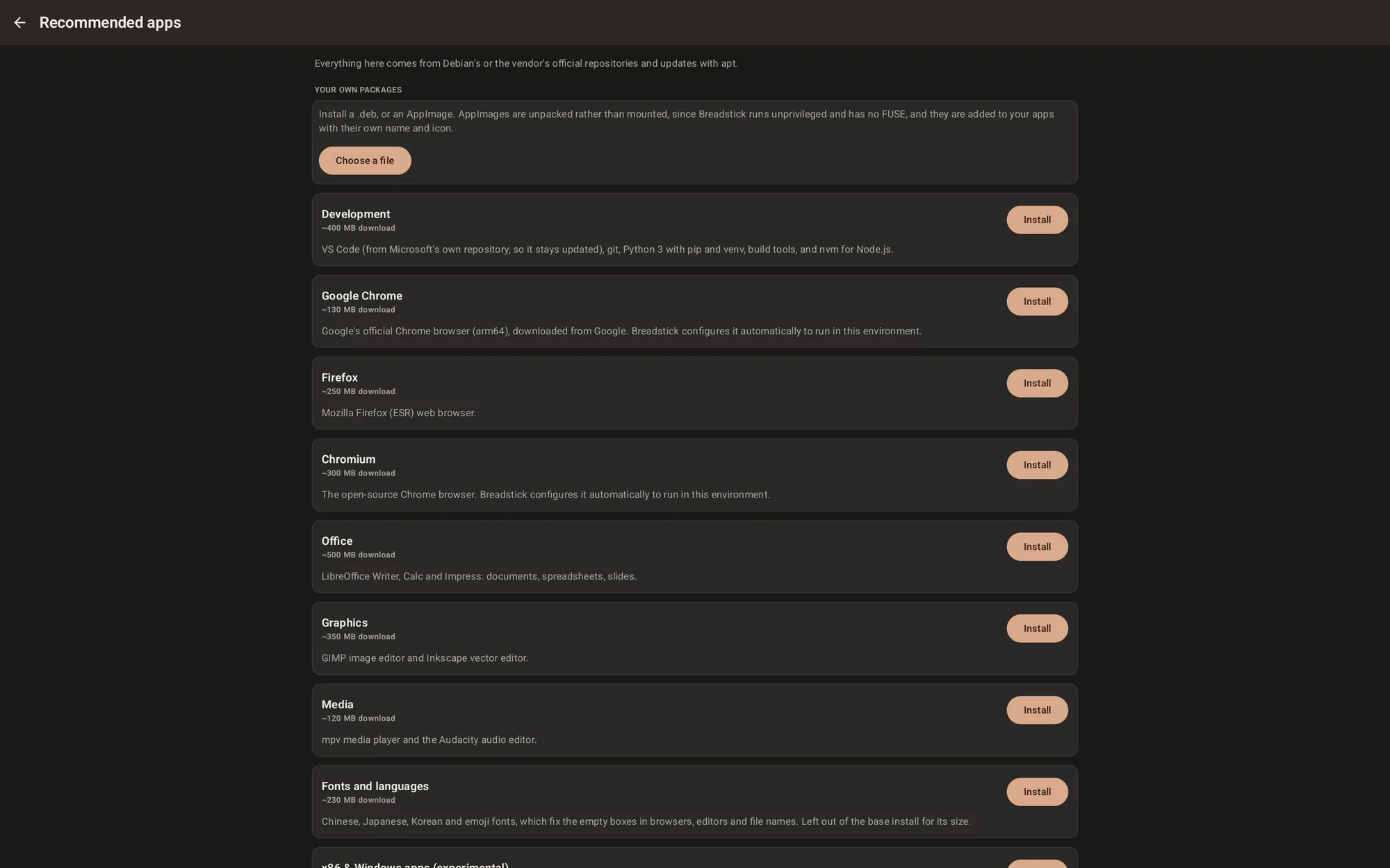
It runs on a lot.
It runs best on some.
Breadstick is a real Debian system executing on your device's own processor, so what your device has is what Linux gets. None of the following is a requirement, but knowing it up front is the difference between a good first hour and a disappointing one.
Memory decides the ceiling
This is the single biggest factor. A current flagship tablet with 12 GB or more of RAM will run a desktop, a browser and an editor together comfortably. A budget device, or a tablet a few years old with 4 GB, will run Breadstick perfectly well for a terminal, an editor or a couple of applications, but it will not hold a heavy desktop session at the same time. Storage matters too: a full desktop with development tools wants several gigabytes free.
A keyboard is worth having
Not required, and the on-screen keyboard works throughout. But Linux desktop software is built around typing and keyboard shortcuts, and a physical keyboard, whether Bluetooth, USB or a folio, is the difference between using these applications and fighting them. A mouse or trackpad helps for the same reason.
DeX helps, but is not the price of entry
Samsung DeX or an Android desktop mode gives you the best experience, particularly for Floating apps, where each Linux application becomes its own resizable window alongside your Android ones. Without one, Desktop mode and the Terminal work exactly as they should on any supported device, filling the screen instead. A desktop-capable device is a better experience, not a requirement.
Free to use.
Pro when you outgrow it.
Install it free and see how it runs on your own device before spending anything. The free version is the whole distribution rather than a trial, and everything that decides whether Breadstick suits you, the desktop, apt, your files and the terminal, is already in it. Pro is one payment that lifts the limits and adds the features listed, with no subscription and no second tier.
Free
Everything below, forever. No account, no expiry.
- The complete Debian system, with apt
- Desktop mode, with as many windows as you like
- Two floating Linux apps at a time
- Two terminal tabs
- One Linux environment
- Your files, clipboard, audio, battery and network
- SSH and VNC
- Backup and repair, and restoring any backup, encrypted ones too
- A live resource monitor
- App packs, and your own .deb and AppImage files
Breadstick Pro
Everything in Free, plus the following. One payment, no subscription.
- Layouts: windows reopen where you left them, and a saved set of apps opens in one tap
- Open Android files in Linux apps
- Drag files into Linux
- Print from Linux apps
- Desks: up to four desktops in Desktop mode
- Keyboard remapping and shortcuts
- Home-screen widgets
- Floating apps without a cap, as many as your device allows
- A better Terminal: unlimited tabs, split panes, themes and fonts, saved SSH hosts and your own command buttons
- GPU acceleration: Linux apps drawing with your device's graphics chip
- x86 apps in one tap, on ARM devices
- Steam on Intel devices, experimental and not supported
- Several Linux environments
- Automatic and encrypted backups
- Snapshots
- Camera on the Linux desktop
- Your calendar in Linux
- Phone notifications in Linux
- Everything Breadstick adds later
Pro removes Breadstick's own limit. Your device still applies its own: Samsung DeX allows about five floating windows at once, whatever is running in them.
Bought through Google Play and tied to your account, so a reinstall or a new device keeps it. Full comparison
Good to know.
Which devices does it work on?+
Using a Pixel or another AOSP phone?+
Do I need to root my phone?+
Will it affect Samsung Knox or Google SafetyNet?+
No. Both exist to detect a device that has been tampered with, and Breadstick does nothing that either of them looks for. Installing it does not change what your banking apps, mobile wallets or work apps see when they check your device.
Samsung Knox is the security platform built into Galaxy devices, starting in the hardware. Part of it is a one-time fuse, the Knox warranty bit, which trips permanently if the device ever boots unofficial software such as a custom recovery, custom firmware or a rooted system. It can never be reset, and once it trips, Samsung Wallet, Secure Folder and Samsung's Knox-based work features stop working for good.
Google SafetyNet, since replaced by the Play Integrity API, is how an app asks Google whether it is running on a genuine, unmodified Android device. Banking apps, Google Wallet payments and many employer-managed apps and VPNs refuse to run on a device that fails that check.
Breadstick is an ordinary app from Google Play, running inside the same Android app sandbox as every other app. It does not root your device, unlock the bootloader, install firmware or change Android in any way, and none of that is possible for an app with normal Android permissions anyway. The whole Linux system lives inside Breadstick's own private storage. Being root inside Linux, or using sudo, gives Linux programs no power over Android at all. There is nothing for Knox to trip on and nothing for an integrity check to fail, and uninstalling Breadstick removes the Linux system completely.
One thing worth knowing: a few banking apps also refuse to open while Developer options is turned on. That is the bank's own rule, separate from Knox and SafetyNet. Breadstick does not need Developer options on Samsung DeX. On other devices, floating windows need one setting there.
How is this different from Termux?+
Is it really full Debian?+
Will it slow down or harm my phone?+
The Linux desktop closed by itself. Why?+
What are the limits?+
Can I use a VPN?+
What about USB devices and security keys?+
Can it run x86 or Windows software?+
x86 Linux programs, yes on an Intel device and sometimes on ARM. Windows programs, no. Breadstick installs a Debian 13 built for your device's processor, so everything runs natively. On an Intel Googlebook or another x86-64 device, that means 64-bit x86 Linux programs simply run, and with Pro, Steam is there for native Linux games, as an experiment that is not supported.
On an ARM device, almost all of Debian is built for ARM64, so this rarely comes up. When it does, the x86 apps pack, one tap with Pro, installs Box64, which runs 64-bit x86 Linux programs you start through it (box64 ./program): some work, some do not, and all run slower than native ones and without GPU acceleration.
Windows programs do not run on either: Android's security rules stop Wine from starting, and the same goes for Steam's Windows games. See x86 apps.
How much does it cost?+
Where do I get it?+
Why is it called Breadstick?+
Breadstick is on Google Play and free to install. Try it on your own device, see how it runs, and upgrade to Pro only if you decide it has earned a place there.