Breadstick documentation
How to run a real Debian desktop on your phone or tablet, what it can do, and where its edges are.
Breadstick runs a real Debian system on your Android device. Not a remote desktop, not an emulator, and not a stripped-down shell: actual Linux applications, running on your device's own processor, drawn as native windows.
These pages cover how to use it and, just as important, what it cannot do. The limits page is the one to read before you plan a workflow around it.
Getting started
Install, first run, and what happens the first time you open it.
The three modes
Desktop, Floating and Terminal, and which one to reach for.
The Terminal
Tabs, windows from the shell, split panes, themes, SSH hosts and command buttons.
Installing apps
App packs, apt, your own .deb and AppImage files, x86 programs, and Steam on Intel devices.
x86 apps
Native on Intel devices; on ARM, Box64: what it runs and what to expect. Why Windows programs do not run.
Files and clipboard
Your Android files inside Linux, opening and dragging them into Linux apps, and the clipboard.
Printing
Print from Linux apps to any printer your device can use, or save a PDF.
Device integration
Audio, camera, notifications, calendar, battery and network.
GPU acceleration
Linux apps drawing with the graphics chip, how Breadstick tests it, and what stays on the processor.
Keyboard and shortcuts
Remap Caps Lock, Alt and Super or any key, and keys that open apps and commands.
Layouts and widgets
Open a set of apps in one tap, where you left them, and Linux on your home screen.
Remote access
SSH in from a laptop, or share the screen over VNC.
Using a VPN
Why a VPN cannot run inside Linux, and how Linux uses the one on Android.
Backup and restore
The whole Linux system in a file you keep, automatic and encrypted backups, and snapshots.
Free and Pro
What free does, what the $19.99 one-time upgrade adds.
What Breadstick cannot do
VPNs, USB devices, security keys, virtual machines. The honest list.
Parental controls
For parents and schools: why Breadstick does not belong on a child's managed device.
Troubleshooting
When a window will not open, sound stops, or an app looks wrong.
Changelog
What changed in each release of the app and of the Linux system.
What it actually is
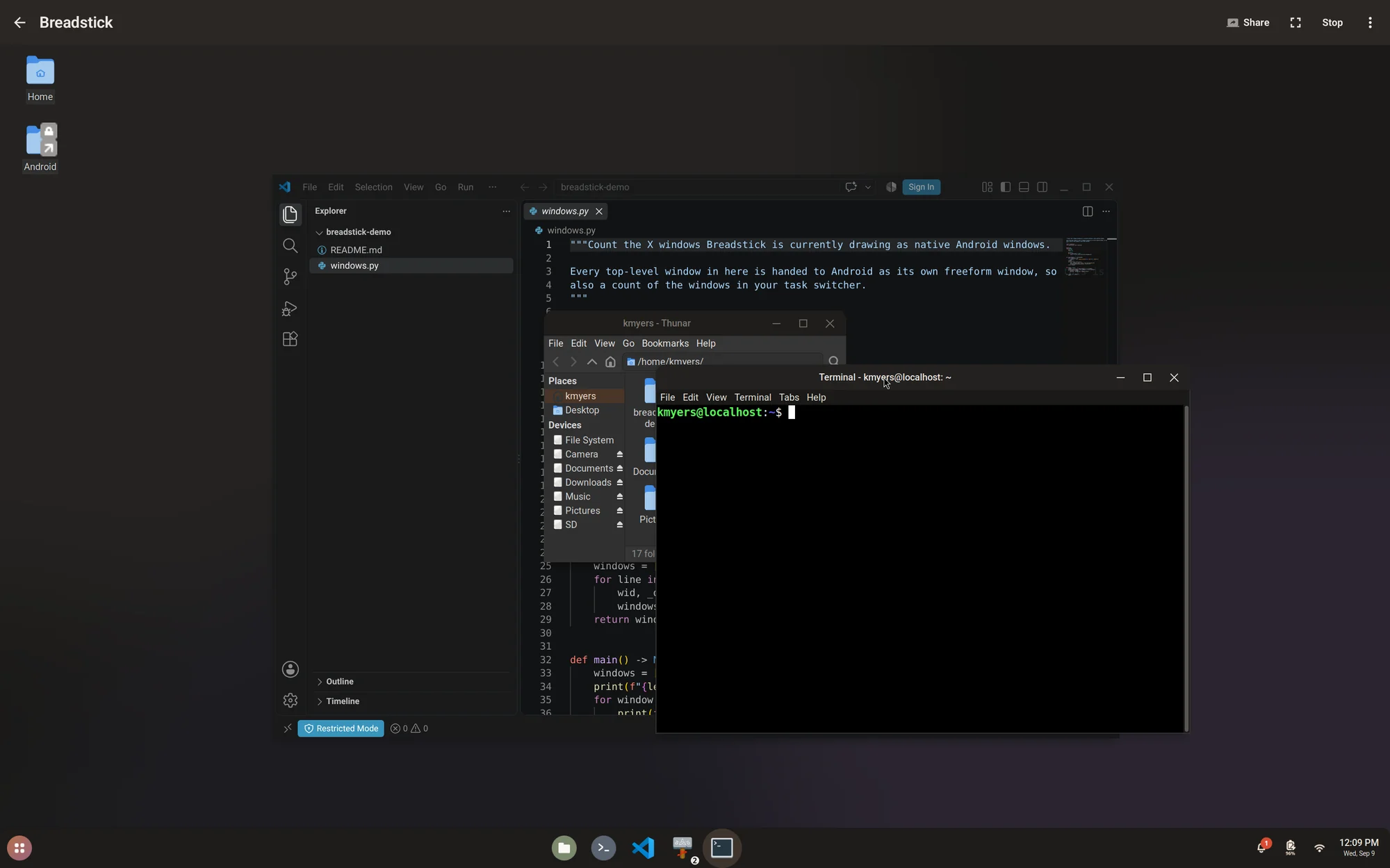
An Android app hosts an X server in its own process. A Debian system runs beside it, unprivileged, through a container. Each Linux window is handed to Android as a real window, so your Linux applications sit in the task switcher next to your Android ones and behave the way the rest of the system does.
Nothing is streamed from a server. Turn off the network and everything except downloading new software still works.
What makes it different
A modern Android tablet has a desktop class processor, more memory than most laptops shipped with a few years ago, a keyboard, and a monitor output. What it has never had is desktop software. Breadstick is what closes that gap.
It is built for people who want more out of hardware they already own: developers, system administrators, engineers, students, tinkerers, and anyone who has looked at what is in their bag and thought it should be capable of more than it is allowed to do. If you have ever wanted your tablet to be the machine you work on rather than the one you read on, this is that.
And getting there is one app install. Breadstick comes from Google Play like any other app. There is no PC involved, no bootloader to unlock, no flashing, no custom recovery, no adb, no warranty to void, and nothing to undo later. You install it, it sets up a Debian system on first launch, and you have a Linux machine. If you decide it is not for you, you uninstall it and your device is exactly as it was.
Concretely, on a device you already carry:
- Write, compile and run code, in a real editor, with real extensions
- Keep projects in git, and run the toolchain the project actually expects
- Run a database, a web server, or a build locally, and reach them from the browser beside them
- Leave something running and SSH back into it from a laptop
- Use the same command line tools you use everywhere else, because they are the same tools
None of that is a phone sized imitation of a desktop program. It is the desktop program, running on your device's own processor.
Most other ways of running Linux on Android give you one scrolling screen, or a shell, or a virtual machine that needs root. Breadstick gives you:
- Real windows. Every Linux application is its own Android window, resizable and snappable.
- A real package manager.
apt installworks, from Debian's archive and from ours. - An app install. It comes from Google Play. No PC, no flashing, no unlocking, nothing to undo.
- No root. Nothing is unlocked, nothing is patched, and your Android install is untouched.
- A system that updates itself. New Breadstick releases arrive through apt, not a new download.
It does have real limits, and they are worth knowing before you commit to it. They are all on one page.
Where to start
If you have just installed it, read Getting started. If you are deciding whether it fits your work, read What Breadstick cannot do first.