The three modes
Desktop, Floating and Terminal draw the same Linux system three different ways. Which one to use, and why switching restarts the session.
Breadstick can draw your Linux system three ways. It is the same system underneath every time: the same files, the same installed software, the same home directory. Only the presentation changes.
Desktop
A full Linux desktop, filling the screen. You get a shelf along the bottom with an application launcher, a task list, and a status area showing battery, network and notifications. Windows open inside that desktop and are managed by Linux, exactly as they would be on a laptop.
Use it when you want a desktop: a monitor, a keyboard and mouse, several windows at once and a clear separation between your Linux work and your Android device.
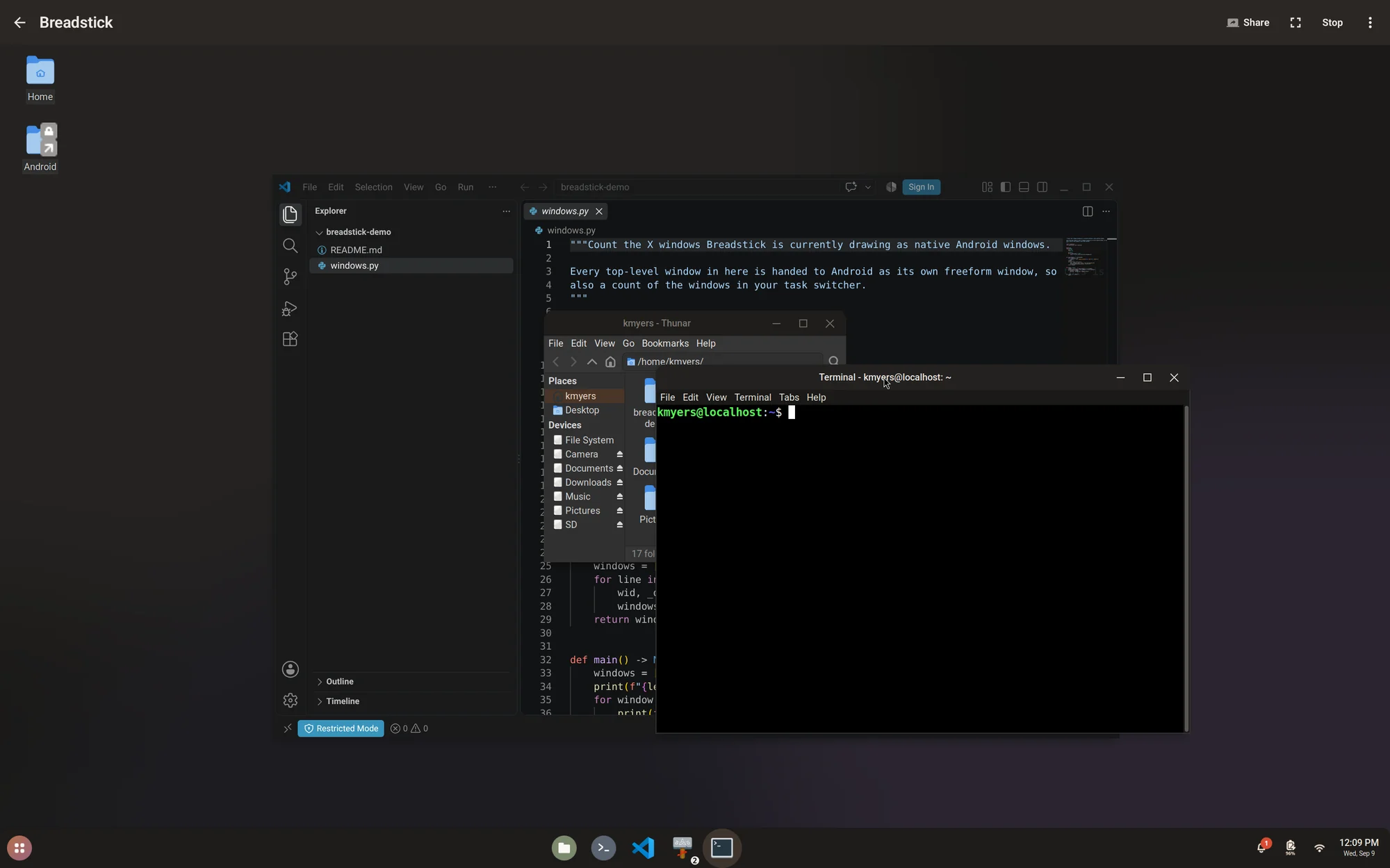
Desktop mode also works on the device's own screen, which is useful on a tablet. On a computer running Android, such as a Googlebook, Full screen at the top of the Breadstick window gives the desktop the whole display.
Desks
Breadstick Pro.
Desks are separate desktops inside Desktop mode, each with its own windows: one for a project, one for mail and the browser, one for a terminal left running. Choose how many, up to four, under Settings, Desks. Then switch between them:
- with the desk button on the shelf, which shows the desk you are on and lists the others
- with Ctrl+Alt+Left and Ctrl+Alt+Right, the Linux desktop's own keys
- by swiping three fingers sideways on a touchscreen: fingers to the left for the next desk, to the right for the one before
Ctrl+Shift+Alt+Left and Right move the window you are in to the desk on that side. Desks are part of Desktop mode only; in Floating mode, Android arranges the windows. If Pro ends, the desktop goes back to one desk.
Floating
Every Linux application becomes its own Android window, side by side with your Android apps. They appear in the task switcher, they snap and resize like anything else, and there is no Linux desktop wrapped around them.
Open applications from the Apps drawer in the Breadstick window, which lists everything installed with its real name and icon. You can also pin any of them to your Android home screen and launch it straight from there.
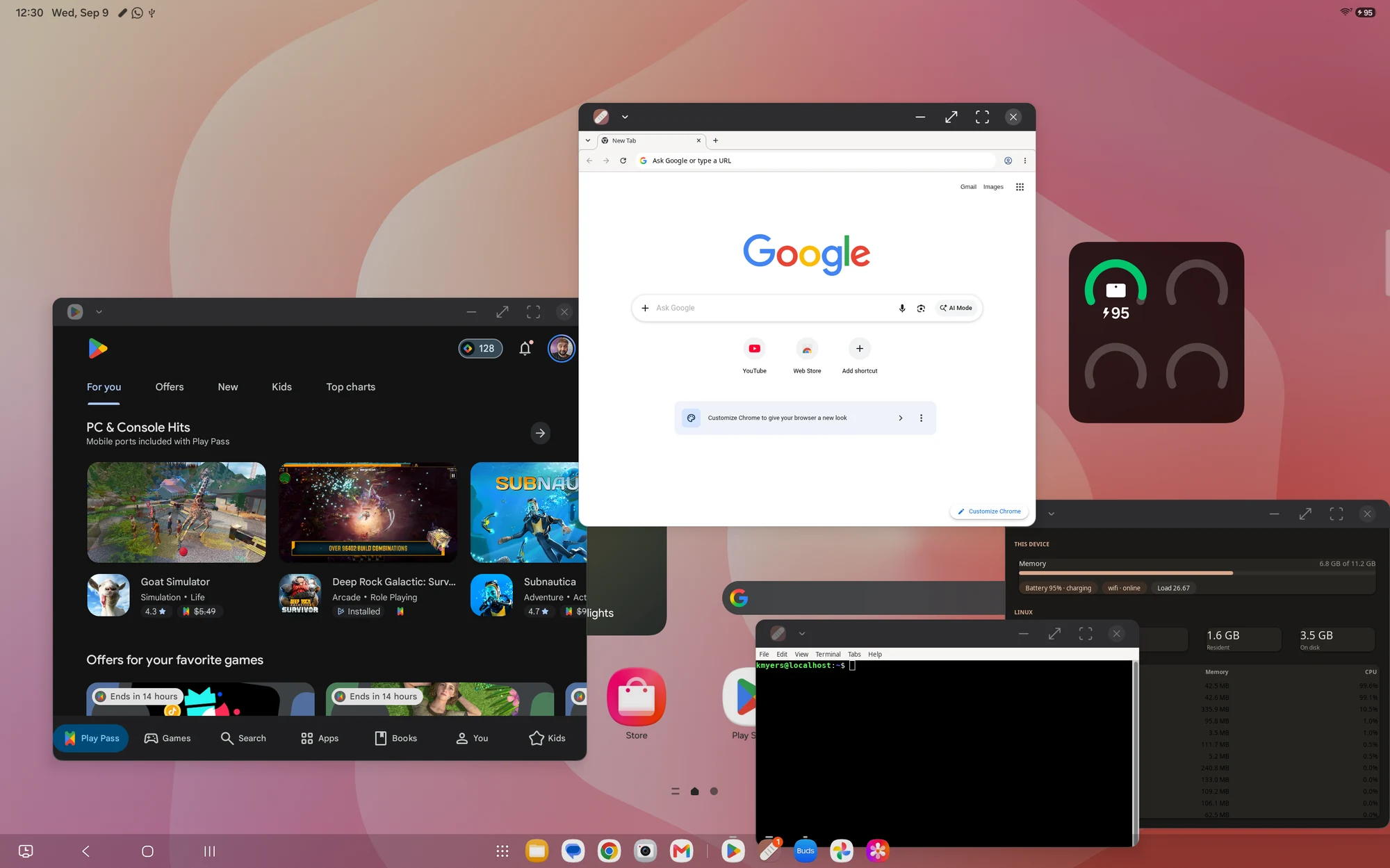
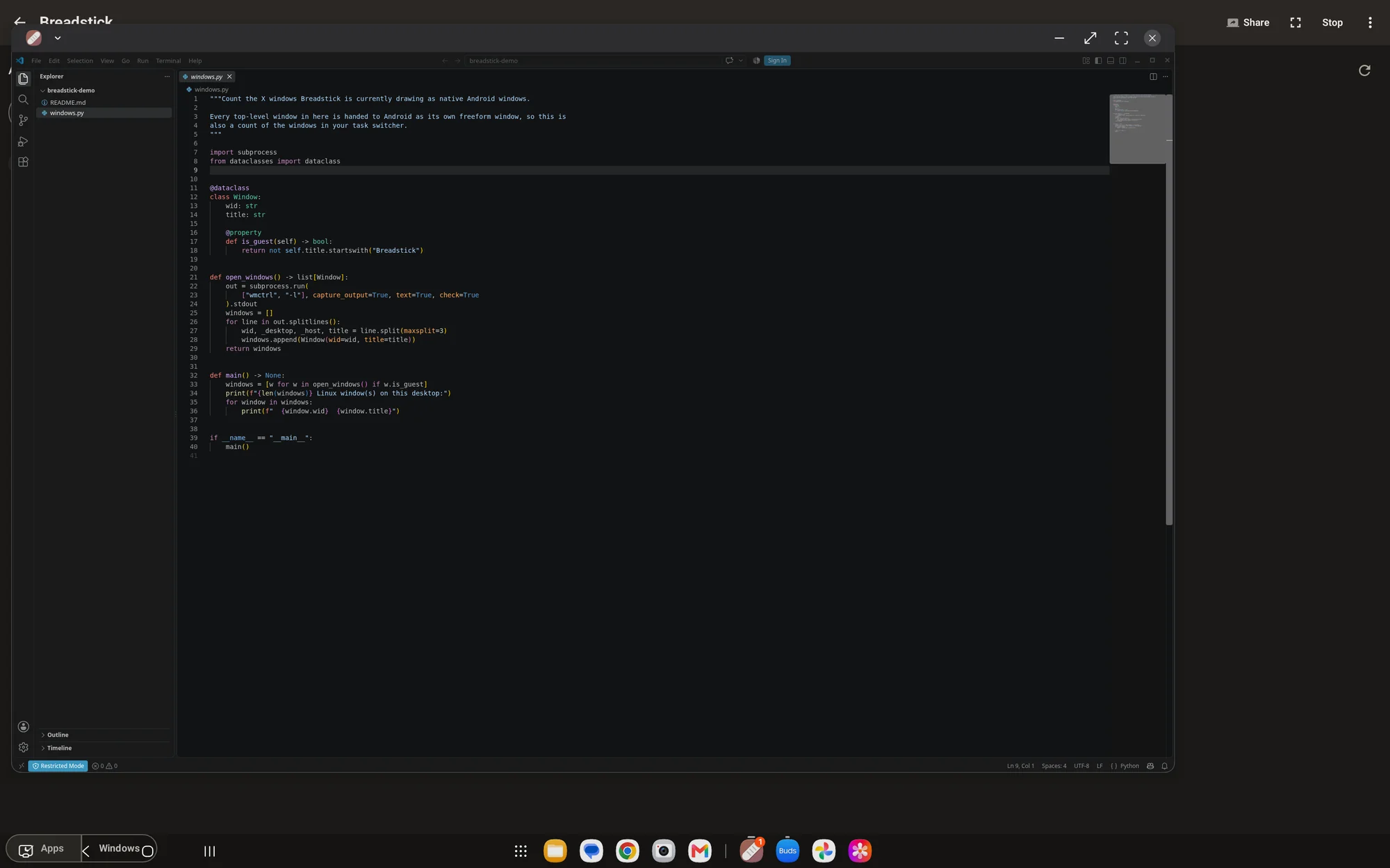
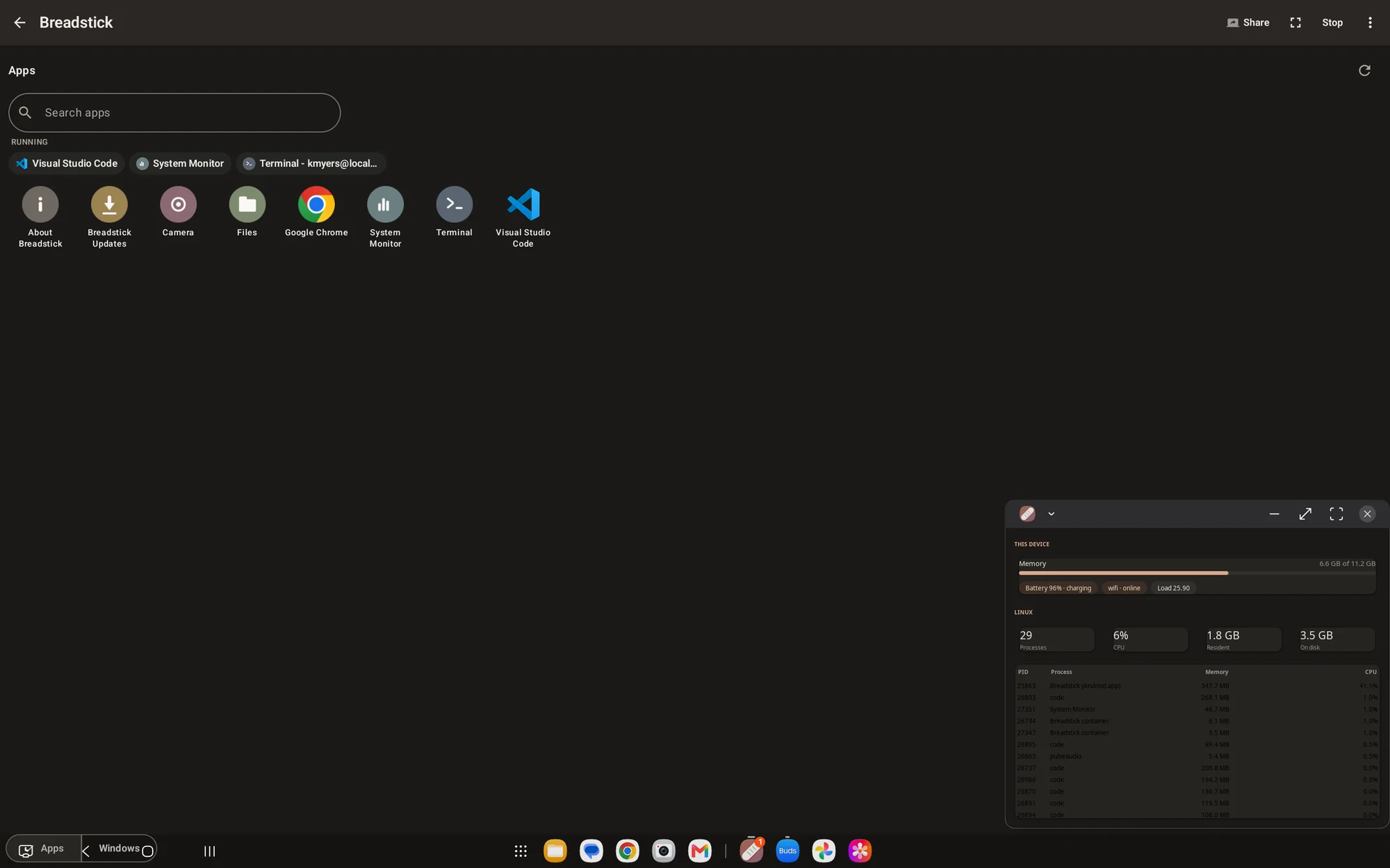
Use it when you want one or two Linux applications as part of how you already work, rather than a separate desktop to switch into. This is the mode that makes Breadstick feel less like a Linux machine you visit and more like Linux applications you own.
On Samsung DeX this works out of the box, and so it does on a Googlebook, in Android's own desktop windowing: every Linux app opens in its own window with its title and icon, at the right size, and its dialogs open in windows of their own that keep their own size. On other Android devices, see Troubleshooting for the one developer setting that has to be on.
The free version runs two floating applications at a time, and the Apps drawer shows how many of the two are open. Breadstick Pro removes Breadstick's limit; your device keeps its own, about five windows at once on Samsung DeX.
With Pro, floating windows reopen where you left them, and a set of apps can be saved as a Layout and opened again in one tap. See Layouts and widgets.
Closing a floating window
Closing a floating window asks its program to close, as closing a window on a Linux desktop does, so a program with unsaved work gets to ask about it first. Its question opens in a window of its own. Answer it and the program closes; cancel it, and the window you closed comes back where it was. A program that neither closes nor asks within a few seconds gets its window back too.
Alt+F4 on a physical keyboard closes the floating window in front, the same way as its close button.
Close the same window again within a minute to end a program that has stopped responding. A program that is still responding is asked again rather than ended. The rare program that cannot be asked at all closes at once.
Terminal
A plain Debian shell, with tabs, and nothing else drawn. It starts fast and uses the least memory.
Use it when you are doing command line work, installing software, or running something that has no interface at all. Anything you install here shows up in the other two modes, because it is the same system. While a Desktop or Floating session runs, a program with a window started from here opens there: on the desktop, or as its own window in Floating mode.
The Terminal covers its tabs, keys, and the Pro additions: split panes, themes and fonts, saved SSH hosts and your own command buttons.
Touch, mouse and touchpad
Desktop and Floating take the same input, so a gesture means the same thing in both.
With a mouse or a touchpad, everything does what it does on a laptop: the right button opens the menu, the middle button pastes in X applications, and the wheel or a two-finger swipe scrolls. If scrolling goes the way you do not expect, Settings has a reverse switch for the mouse wheel and a separate one for the touchpad, because people who want natural scrolling on one rarely want it on the other. That includes the touchpads Android handles itself from Android 14 on, such as a Googlebook's: a tap clicks, and two fingers scroll.
On a touchscreen:
- Tap to click; drag to select or to move something.
- Hold a finger still for a moment to right-click.
- Two fingers scroll, and the content follows your fingers. Let go while moving and it keeps going for a moment, as it does in Android apps.
- Pinch to zoom, in browsers, editors, image viewers and anything else that zooms with Ctrl and the wheel.
- Tap with two fingers to right-click, and with three to middle-click.
- With more than one desk in Desktop mode, swipe three fingers sideways to move between them.
A physical keyboard works in both, and Keyboard and shortcuts covers remapping its keys and adding shortcuts.
If Android closes Linux
In either mode, Android can close the Linux session, most often at its process limit. Breadstick then says what closed it, in a banner where the session was. If the session had been running for more than two minutes, Breadstick restarts it on its own, once; after the process limit, only if there is room below the limit to start again. Otherwise the banner has Restart, as well as Send report, and Why this happens when the process limit was the reason. A session closed at the process limit and not restarted also gets a notification that says so.
In Floating mode there is more. The next time a Floating session starts after Linux was closed, the Apps drawer says Linux was closed. Reopen what was open? and lists the apps you had open. Reopen opens them again, one at a time, each where its window was (on Android 11 and newer). Apps that are still open are left out, and the free version's two-app limit applies as usual. Stopping Linux yourself clears the list, so the offer only follows a session you did not end.
Switching modes restarts the session
Desktop and Floating draw Linux windows in fundamentally different ways, so moving between them restarts the Linux session and closes anything you have open. Breadstick warns you before doing it.
Your files, installed software and settings are untouched. It is the running applications that stop, in the same way that logging out and back in on a desktop closes your windows but keeps your account.
Terminal can be used alongside either without a restart.
Which should you use
| If you want | Use |
|---|---|
| A monitor, keyboard and a full desktop | Desktop |
| Linux apps mixed in with Android apps | Floating |
| One editor open next to your other work | Floating |
| A shell, quickly, with the least overhead | Terminal |
| To install software before doing anything else | Terminal or the Apps screen |