Installing apps
App packs, apt, your own .deb and AppImage files, x86 programs, and Steam on Intel devices (experimental).
Breadstick is a real Debian system, so installing software works the way it does on any Debian machine. There are four routes, and they all end up in the same place.
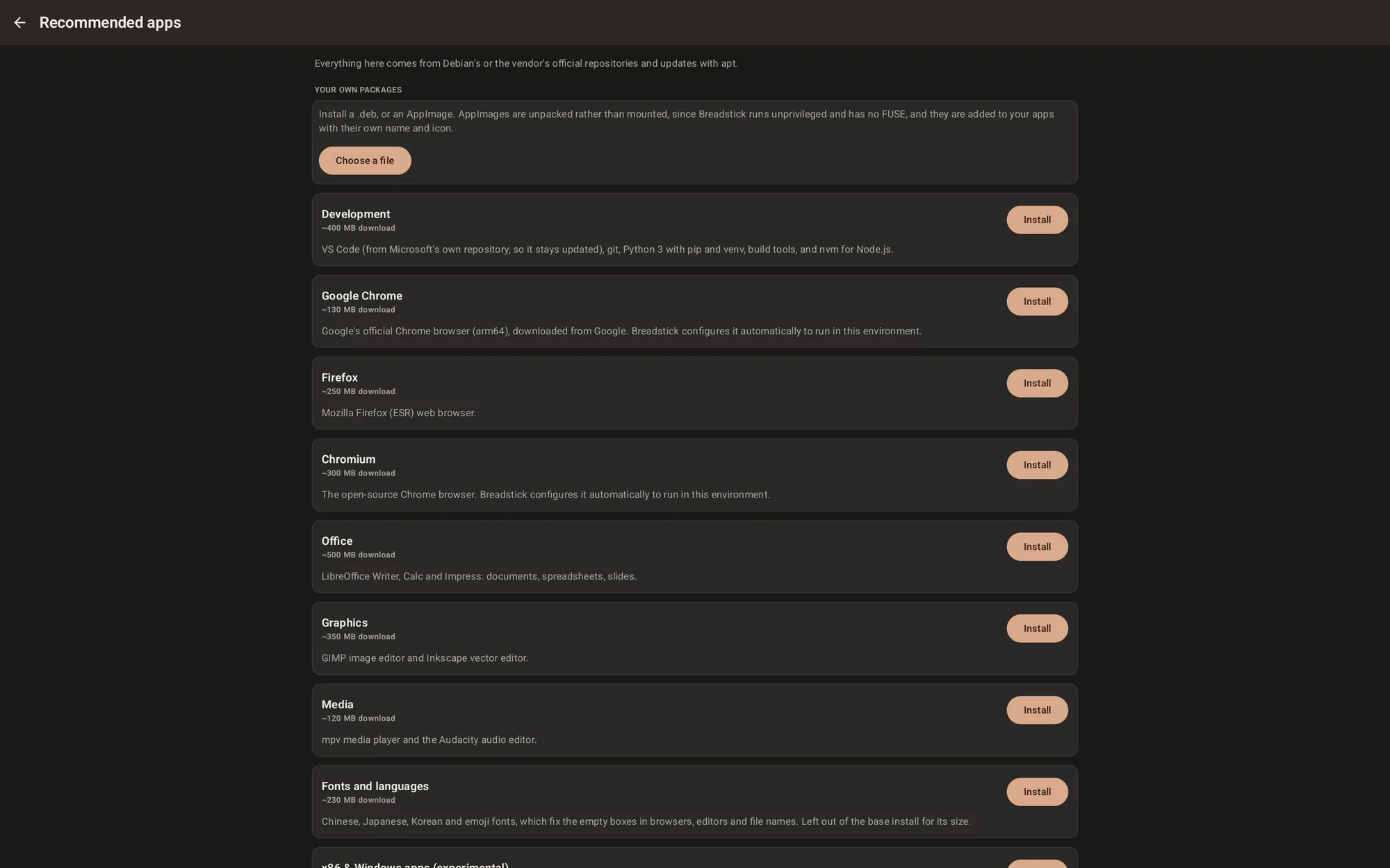
Recommended apps
The quickest route. Each entry is a bundle, with its download size shown before you commit, pulled from Debian's archive or the vendor's own repository so it keeps updating normally afterwards.
| Pack | What you get |
|---|---|
| Development | VS Code from Microsoft's repository, git, Python 3 with pip and venv, build tools, nvm for Node |
| Google Chrome | Chrome from Google, built for your device's processor and configured to run in this environment |
| Firefox | Firefox ESR |
| Chromium | Chromium, the open source Chrome browser |
| Office | LibreOffice Writer, Calc and Impress |
| Graphics | GIMP and Inkscape |
| Media | mpv and Audacity |
| Fonts and languages | Chinese, Japanese, Korean and emoji fonts |
| x86 apps (Pro, ARM devices) | Box64 for 64-bit x86 Linux programs, experimental |
| Steam (Pro, Intel devices) | Valve's Steam, for native Linux games. Experimental and not supported: see Steam |
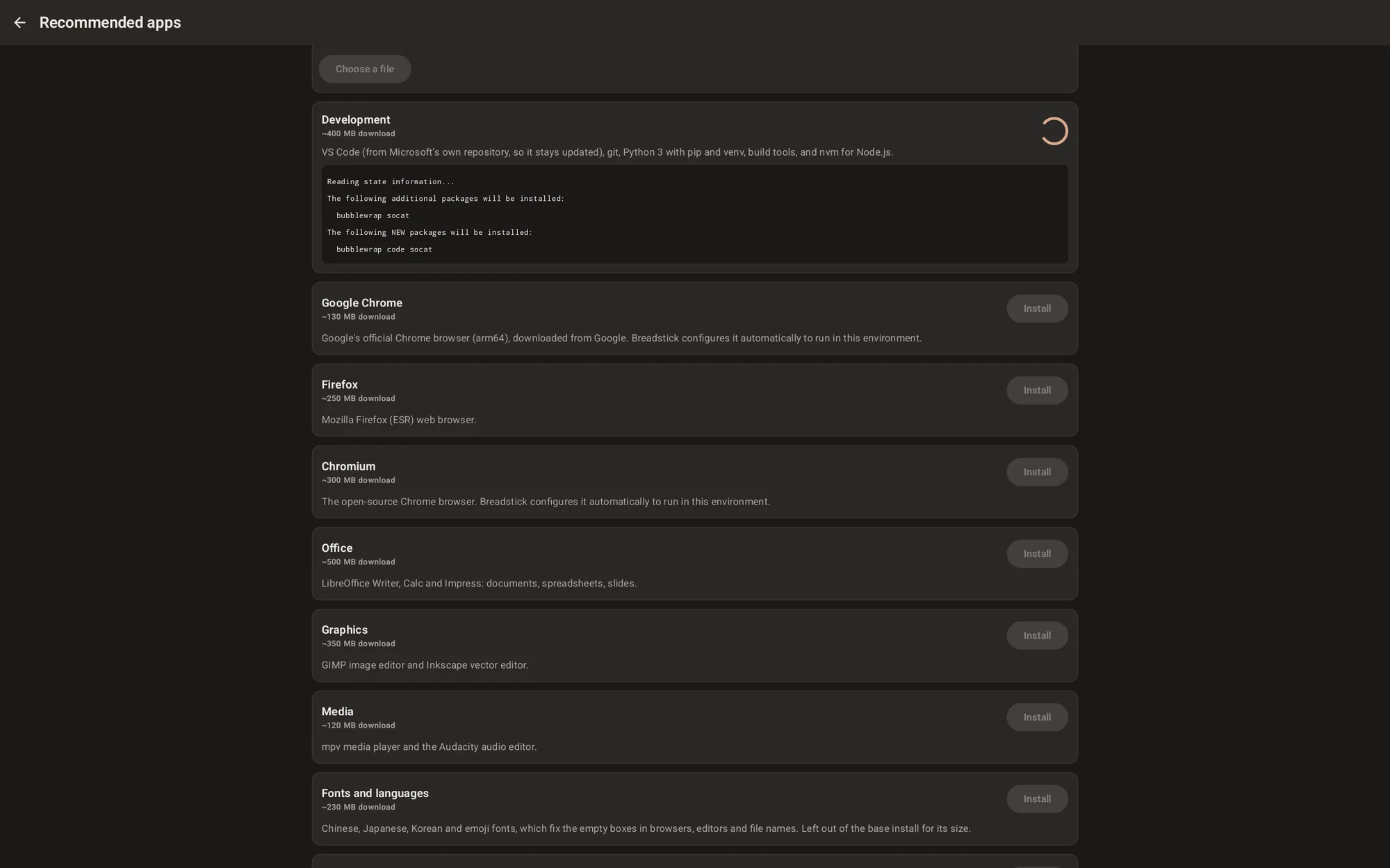
Installation runs in the foreground with the live apt output visible, so you can see exactly what is happening rather than watching a spinner.
Steam (experimental, not supported)
Steam in Breadstick is experimental and not supported. Steam or a game may not start, or may stop working after an update. It is part of Breadstick Pro, on Intel (x86-64) devices only: Recommended apps does not list it on an ARM device.
- Native Linux games only. Windows games do not run. Steam runs them through Proton, which is built on Wine, and Android's security rules do not let an app run the code Wine needs: the same reason Wine does not run on ARM devices. See Windows programs.
- 32-bit games can be slow. On a device whose processor cannot run 32-bit code natively, and the Lenovo Googlebook 15 is one, 32-bit games draw in software.
- Android's child process limit has to be off. Steam and a desktop together need more processes than Android allows one app by default. The Steam card refuses to install until the limit is off, and says how. The desktop closes on its own explains how to turn it off, and what that costs.
Tap Steam on the Recommended apps screen. Breadstick installs what Steam needs, then downloads Valve's official Steam installer from Valve and opens it. The installer downloads the Steam client and shows Valve's Subscriber Agreement, which you accept or decline yourself, and you sign in to your Steam account yourself too. If Steam does not open after the install, start it from the Apps page.
What we have seen: on a Lenovo Googlebook 15, Steam signed in, the store and the library worked, games downloaded, and Portal ran with sound. That is one device, and not a promise about any game.
Steam's runtime runs games in a sandbox built with bubblewrap. Sandboxed Linux programs like it work inside Breadstick from version 2.0.
apt
Everything Debian has is available, and the app catalog lists its desktop apps, with the ones tested in Breadstick marked. Open the Terminal and use it:
sudo apt update
sudo apt install neovim ripgrep tmux
The Breadstick repository is already configured and signed, so our components update alongside Debian's:
sudo apt upgrade
Anything with a desktop entry appears in the Apps drawer and the desktop launcher automatically.
Your own .deb and AppImage files
On the Recommended apps screen, Choose a file installs a package you already have.
.deb files install with dpkg, and any missing dependencies are resolved afterwards, the same
as apt install ./file.deb on a normal machine.
AppImages are unpacked rather than mounted. An AppImage normally mounts itself using FUSE, which is not available here, so Breadstick extracts it into your home directory instead and reads the application's own name, icon and categories out of it to create a proper launcher entry. The result behaves like any other installed application.
x86 and Windows software
Breadstick runs software natively on your device's own processor, which is why nearly everything is fast. On an Intel device, Debian 13 is built for amd64, so 64-bit x86 Linux programs are simply native and need nothing on this page.
On an ARM device, Debian builds almost its entire archive for ARM64, so missing x86 software rarely comes up. When it does, the x86 apps pack, part of Pro, installs Box64, which runs 64-bit x86 Linux programs on ARM. Start one through it from a terminal:
box64 ./program
The pack also adds bsl-x86 ./program, which does the same. Android does not let Linux hand x86
programs to Box64 automatically, so an x86 program started directly, from a menu entry or from the
file manager, fails, usually with "Exec format error".
This is experimental and labeled as such in the app. Some programs work and some do not. Everything runs without GPU acceleration, and translated code is slower than native code. How much slower depends on your device. It is worth trying for a specific program you need. It is not a general promise that x86 software runs. x86 apps covers how to run them and what to expect.
Windows programs do not run, on ARM or Intel devices. Wine cannot start in Breadstick: Android does not let an app run code it has changed after loading it from a file, and Wine changes its own core library as it starts. That comes from Android's security rules, not from a setting. For a Windows program, look for a Linux version or a web version instead. The x86 & Windows apps pack in earlier versions of Breadstick installed Wine; if you installed it, these free the space Wine takes:
sudo apt remove wine
sudo apt autoremove
Where applications appear
However you install it, software shows up in all three modes, because there is only one system underneath:
- the Apps drawer in Floating mode
- the launcher on the desktop shelf in Desktop mode
- on your Android home screen, if you pin it
The exception is an x86 program run through Box64 on an ARM device, which starts from a terminal: see x86 apps.
Removing things
sudo apt remove gimp
sudo apt autoremove
To reclaim the most space at once, sudo apt clean empties the downloaded package cache, which can
be large after installing several packs.