Getting started
What happens the first time you open Breadstick, and what to do once it is ready.
What you need
- An Android device running Android 8 or newer, on ARM64 or x86-64. Nearly every phone and tablet sold in the last several years is ARM64, and Intel Googlebooks are x86-64. Either way, Breadstick installs a Debian 13 built for your device's processor, so nothing is translated.
- About 6 GB of free storage space to begin with. That is disk space, not memory. The system itself is smaller than that, but applications and their package caches grow. Memory is a separate question, covered below.
- A Wi-Fi connection for the first run, which downloads the Linux system.
Breadstick works on the device's own screen. It is better with a keyboard, mouse and monitor, and better still on Samsung DeX or Android desktop mode, but none of that is required. It runs on Googlebooks too, ARM and Intel alike, where Android's desktop windowing gives every Linux app a window of its own and the touchpad's taps and two-finger scrolling work.
How well it will run
Linux runs on your device's own processor, so what the device has is what Linux gets. Breadstick is free to install, and running it on your own hardware is the only reliable way to find out how it performs there. Do that before buying anything. The resource monitor on the home screen shows what Linux takes from the device while you try it.
Memory is the deciding factor. A current flagship tablet with 12 GB of RAM or more will hold a desktop, a browser and an editor at once without complaint. A budget device, or a tablet a few years old with 4 GB, still runs Breadstick well for a terminal, an editor, or a couple of applications, but it will not keep a heavy desktop session going alongside them. If you plan to live in a browser with many tabs, memory is what you are shopping for.
A physical keyboard is worth having. It is not required, and the on-screen keyboard works throughout. But desktop Linux software assumes typing and keyboard shortcuts, and a keyboard, Bluetooth, USB or a folio, is the difference between using these applications and fighting them. A mouse or trackpad helps for the same reason.
A desktop mode is better, not mandatory. Samsung DeX, a Googlebook, or an Android desktop mode gives the best experience, and it matters most for Floating apps, where each Linux application becomes its own window beside your Android ones. Without one, Desktop mode and the Terminal work exactly as intended and fill the screen instead.
First run
Open the app. It downloads a Debian system image, verifies it, and unpacks it. This takes a few minutes on Wi-Fi and only happens once. If the download is interrupted it resumes where it stopped.
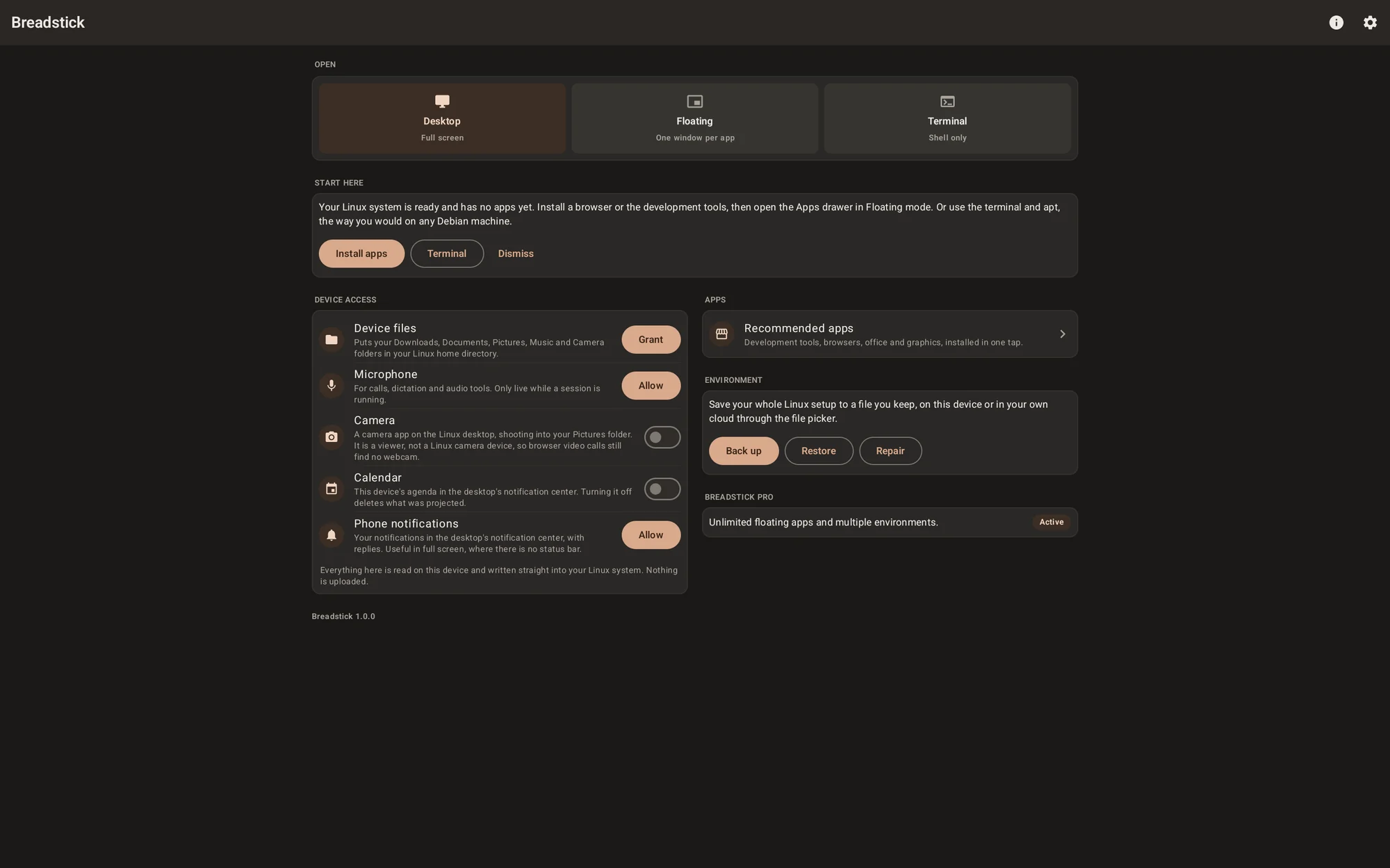
Once it finishes you land on the home screen, which is the control panel for everything:
- Open picks how Linux is drawn: Desktop, Floating or Terminal. See The three modes.
- Device access grants Linux access to your files, microphone, camera, notifications and calendar. All of it is off until you turn it on, and each one explains what it does. Printing is here too, and starts on: it gives Linux apps a printer that prints through Android.
- Apps installs software.
- Monitor opens the resource monitor, which shows what Linux is using.
- Environment backs up, restores and repairs the Linux system.
Give it access to your files
The one permission worth granting immediately is Device files. It puts your Downloads, Documents, Pictures, Music and Camera folders into your Linux home directory, so you can work on the files you already have. Without it, Linux can still read and write its own private storage, but nothing of yours.
See Files and clipboard for where everything lands.
Install something
Tap Recommended apps. Each entry is a bundle with its download size shown, installed with one tap from Debian's or the vendor's own repository:
- Development for VS Code, git, Python and build tools
- Google Chrome, Firefox or Chromium for a browser
- Office for LibreOffice Writer, Calc and Impress
- Graphics for GIMP and Inkscape
You are not limited to these: the app catalog lists Debian's desktop apps. Anything in Debian's archive installs with apt, and you can install
your own .deb and AppImage files. See Installing apps.
Open your apps
Switch to Floating and open the Apps drawer, or switch to Desktop and use the launcher in the corner of the shelf. Either way you are running the same software on the same system: the only difference is how the windows are drawn.
Keeping it up to date
Breadstick updates itself through apt, from our package repository, so you do not need to reinstall the Android app to get a newer system. The Breadstick Updates application inside Linux installs every available update: ours, Debian's, and those from other sources you added, such as Chrome or VS Code. It shows what will change before it installs anything.
From a terminal, the same thing:
sudo apt update && sudo apt full-upgrade
If something goes wrong
Environment on the home screen has a Repair action that fixes a system whose packages are in a bad state, without touching your files. Back up writes the whole thing to a single file you keep. See Backup and restore and Troubleshooting.