Breadstick 2.1: the Enhanced Terminal

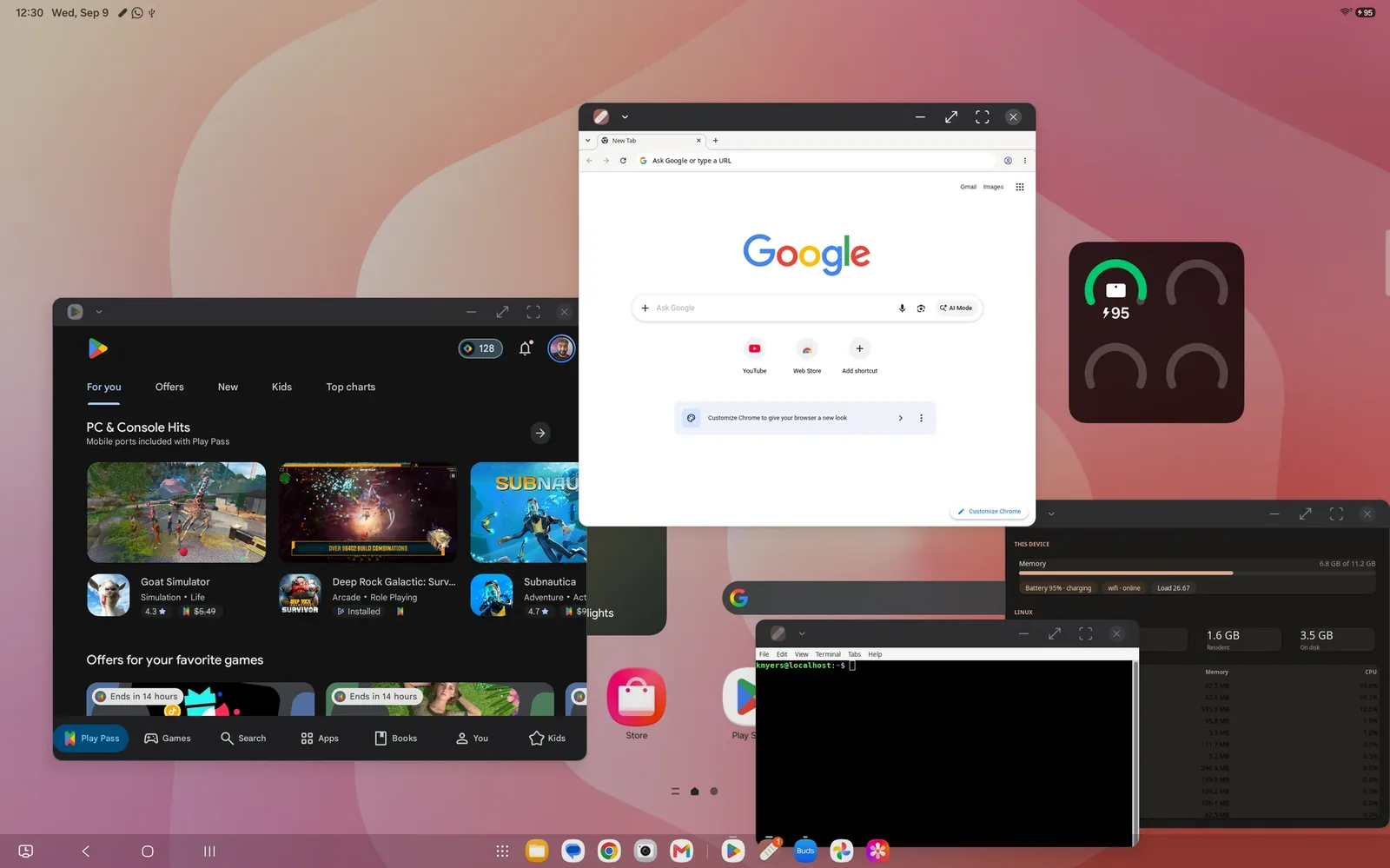
Breadstick 2.1 is rolling out on Google Play today. If your device updates apps automatically, it is already on its way; if not, open Breadstick in the Play Store and tap Update. 2.0 was about where Breadstick runs. This one is about how it feels to use, and most of it started with your messages.
The Enhanced Terminal
The Terminal screen is where many of you spend most of your time in Breadstick, and you told us it should do more. So with Pro, it can now be Linux’s own full terminal: the same one the Linux desktop uses, filling the Terminal screen. You get proper colors, mouse support in programs like htop and vim, clickable links, searchable output, and its own fonts and settings. Right-click in it for its menu.
Under it sits a row of the keys a phone keyboard leaves out: Esc, Tab, Ctrl, Alt, the arrows, Home, End, Page Up, Page Down, a few symbols, and copy and paste that share the clipboard with Android. Ctrl and Alt stay held until the next key you press, so Ctrl and then c stops a running command, whichever keyboard the c comes from.
Turn it on under Settings, Terminal. The Basic Terminal is still there, and still free.
Split screen
The Enhanced Terminal can also tile. One tap puts your terminal tabs side by side: up to four on a tablet or a Googlebook, two on a phone. Tap or click a terminal to type into it, and drag the dividers to give one more room. Run a build in one, watch htop in another, and keep a shell free for everything else. The split stays as you left it until Linux stops.
The Terminal guide has the details.
Built for big screens
More of you are running Breadstick on Googlebooks, tablets and external monitors, so 2.1 makes Breadstick’s own screens work the way a desktop app should:
- Window titles. On Googlebooks and in Android’s desktop windowing, each Floating window’s title bar now names the Linux window inside it, such as “Breadstick Linux - Terminal”, so you can tell your windows apart at a glance.
- A navigation rail. In a wide window, Home, Apps, Terminal, Monitor, Settings and Help sit along the side, one click away.
- Keyboard shortcuts. Ctrl+1 for Home, Ctrl+T for the Terminal, Ctrl+, for Settings, F1 for Help, and more, all listed in Android’s keyboard shortcuts list. Keys for Breadstick’s own screens has them all.
- Right-click menus and a pointer that knows what is clickable. A right-click opens what a long press opens, and the pointer turns into a hand over buttons and links.
On a phone, Breadstick looks as it did. Menus near the bottom or the edge of a Linux window now open where you can see them, on every device.
Quieter process warnings
Android limits how many processes one app may run, and Breadstick warns you before Linux gets close to that limit. Some of you have switched the limit off, and still saw the warning. That should never happen, and in 2.1 it does not. Breadstick reads Android’s own switch for the limit, and if the limit was removed another way, it learns that after watching Linux run past it a few times without being closed. The troubleshooting guide explains the limit.
Also in 2.1
- Firefox video with sound in Floating windows. Videos that said your browser could not play them now play, sound included.
- Fixes and polish throughout.
Thank you
Every part of this release came from someone telling us what got in their way: in an email, a review, a Reddit thread, or a diagnostics log sent from the app. Thank you for taking the time. Keep it coming.
Everything is listed in the changelog.
Update Breadstick on Google Play, and tell us how it goes at hello@breadstick.io. 🥖

Written by Keith I Myers
Creator of Breadstick
Keith builds Breadstick, the app that brings real Debian Linux apps to Samsung DeX as native windows.
All posts by Keith I Myers →