What's New in Breadstick 1.3.0

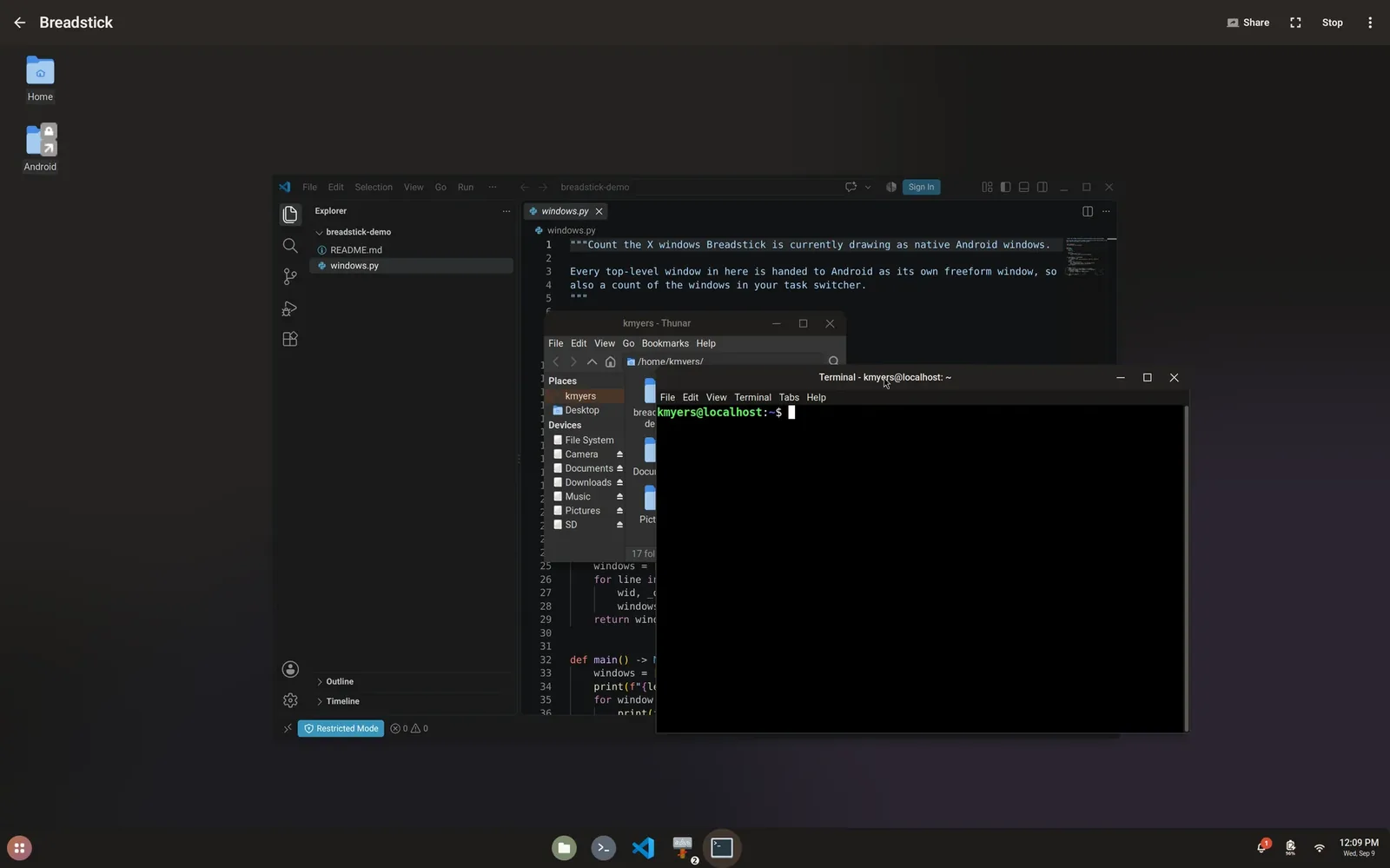
Breadstick 1.3.0 is rolling out on Google Play today. If your device updates apps automatically, it is already on its way; if not, open Breadstick in the Play Store and tap Update. Thank you to everyone who has written in since the last release with reports, logs and ideas. Most of this release is about everyday reliability: seeing what Linux is using, getting your apps back when Android steps in, and not losing work to a closed window.
See what Linux is using
Breadstick now has a resource monitor, and it is for everyone. Tap Resource monitor, under Monitor on the home screen, to see live what Breadstick and its Linux system take from your device: processor, memory, the process count against Android’s limit of 32, network, power and temperature, and the size of your Linux system on disk. It is also in Settings, Troubleshooting.
It takes a reading every two seconds and draws the last five minutes, and only while the monitor or its home screen card is on screen, so it costs nothing the rest of the time. If your desktop has ever closed on its own, the process count is the number to watch. When the device slows down or gets warm, the processor, power and temperature tiles show what is going on. The troubleshooting guide explains every tile.
When Android closes Linux
Android can close the Linux session on its own, most often at its process limit. This release makes that much easier to recover from:
- Your floating apps come back. If Android closes Linux while you have floating apps open, the next Floating start offers to reopen them, and on Android 11 and newer each one goes back where its window was. See If Android closes Linux.
- Restart works again. Since 1.2.0, once Android had closed the desktop, the automatic restart and the Restart button did nothing until you tapped Stop. Both work again.
- Warnings you can rely on. The warning before the process limit now works on phones that enforce the limit, where it could go quiet for good. If Android closes the session at the limit and Breadstick cannot restart it, a notification tells you why.
Closing a window asks the program first
Closing a floating window now asks its program to close, the way closing a window on a Linux desktop does. A program with unsaved work gets to ask about it before anything is lost, and if you cancel, the window you closed comes back where it was. Until now, closing a window could leave its program running with nothing to show for it: Chrome, LibreOffice and VS Code carried on with no window, still counting against Android’s process limit.
If a program stops responding, close its window again within a minute to end it. Closing a floating window has the details.
Terminal programs open on your session
A program with a window that you start in a Terminal tab now opens on the running session: on the Linux desktop in Desktop mode, or as its own Android window in Floating mode. A tab that was already open when the session started picks it up with the next command you type. See Programs with windows.
Better on phones
- Room for the keyboard. The desktop and the Terminal make room for the on-screen keyboard.
- Clear of the status bar. Floating windows keep clear of the status bar at the top of the screen.
- A full-size desktop. The shelf at the bottom of the Linux desktop and its status icons are full size on phones, and the app launcher fits the screen instead of cutting off its right-hand columns.
Smaller fixes
- Starting after a restore. Starting Linux after a restore could fail with “The display server didn’t start” until you closed the app. It starts now.
- Your clipboard, left alone. Starting the desktop no longer copies to your Android clipboard every time, with Android’s clipboard notice. And a clip from an earlier session no longer comes back over whatever you copied since.
- Android 8 to 10. The Terminal and floating windows no longer crash on Android 8 to 10.
- Setup shows as done. Settings shows a new Linux system as set up right after the first install.
The Linux side kept moving too
Breadstick’s Linux system updates itself through apt, and three updates went out this week. Two of the fixes above arrived that way: the full-size desktop on phones, and old clips no longer coming back. So did these:
- Faster drawing. Linux apps draw faster in Desktop mode. Android gives apps no shared memory of the kind X11 programs use to hand their pixels to the display, so Breadstick now provides it. OpenGL drawn in software ran about twice as fast at 1080p on a Galaxy Tab S11 Ultra, and GTK apps, SDL games and video players take the same path. It tests itself each time the desktop starts, and stays off on any device where the test does not pass.
- SSH on Debian 13. The SSH server starts on Debian 13, where turning it on used to end with “SSH server failed to start”.
Those changes reach your device without an app update.
Find your next Linux app
The site has something new as well: the Breadstick app catalog, a guide to more than 1,500 of Debian 13’s desktop apps, by category and by popularity. The ones we have tested on a real device are marked, with the details on each page. If you are wondering whether a desktop app you rely on is in Debian, it is a good place to start.
New in Breadstick Pro
Breadstick Pro gains a good deal in this release as well:
- Printing. LibreOffice, Chrome and every other Linux app print through Android’s print dialog, to any printer your device can use, or save a PDF. See Printing.
- Layouts. Save the floating apps you have open and where their windows are, then open them all again in one tap, from Breadstick or from your home screen. Layouts open in Floating mode, and floating windows reopen where you left them. See Layouts.
- Automatic and encrypted backups. Back up on a schedule while your device charges, to the device or to a folder your cloud storage app syncs, and encrypt backups with a password. Restoring any backup stays free. See automatic backups and encrypted backups.
- Open with, and drag and drop. Open Android documents, photos and code files in Linux apps from Android’s Open with, and drag files from Android apps onto Linux windows on Samsung DeX. See Open with and drag and drop.
- Desks. Up to four desktops in Desktop mode, switched from the shelf, the keyboard or a three-finger swipe. See Desks.
- Keyboard remapping and shortcuts. Caps Lock as Ctrl or Escape, Alt and Super swapped, other keys remapped, and key combinations that open an app, a Layout or a command. See Keyboard and shortcuts.
- Home screen widgets. A live Linux monitor, and Run in Linux, a button that opens a Layout or runs a command. See widgets.
- More in the Terminal. Themes, fonts, split panes, saved SSH hosts and buttons for your own commands. See split panes and saved SSH hosts.
- The x86 apps pack in one tap. It sets up Box64, an experimental way to run 64-bit x86 Linux programs, and no longer installs Wine, which Android does not let start. See x86 apps.
The Free and Pro page lists what each version includes.
Everything is listed in the changelog.
Update Breadstick on Google Play, and tell us how it goes at hello@breadstick.io. 🥖

Written by Keith I Myers
Creator of Breadstick
Keith builds Breadstick, the app that brings real Debian Linux apps to Samsung DeX as native windows.
All posts by Keith I Myers →