Breadstick Tools: the adb steps, from your browser

A few things about Breadstick come up in email more than anything else, and every one of them ends the same way: “connect the device to a computer and run this adb command.” The background process limit that closes the Linux desktop. The freeform-windows switch some phones need before Floating mode can open a window. The two permissions the virtual machine engine will need. Android will not let an app change any of them about itself, which is the right design, and it means the fix lives on a computer.
For a lot of people that is where it stops. Installing Android’s developer tools, finding the right terminal, typing a command with an underscore in the right place: it is a real barrier, and it has nothing to do with using Linux.
So there is now a page for it: breadstick.io/breadstick-tools. Open it in Chrome on a computer, plug the device in with a USB cable, and the page does the adb part itself. Nothing to install, no account, and nothing leaves your browser.
Three minutes, start to finish
On the device, turn on Developer options (tap Build number seven times in About phone) and USB debugging. The page walks through the exact path for Samsung, Pixel and other brands. Then read the short note at the top and tick the box: these tools change Android settings, you are the one choosing to, and every change has its own button to put it back.
Click Connect your device and choose the device in the picker. The device asks whether to allow USB debugging from this computer and shows a fingerprint; the page shows the same fingerprint, so you can check it. Tap Allow. From there each card reads its setting from the device and shows where it stands.
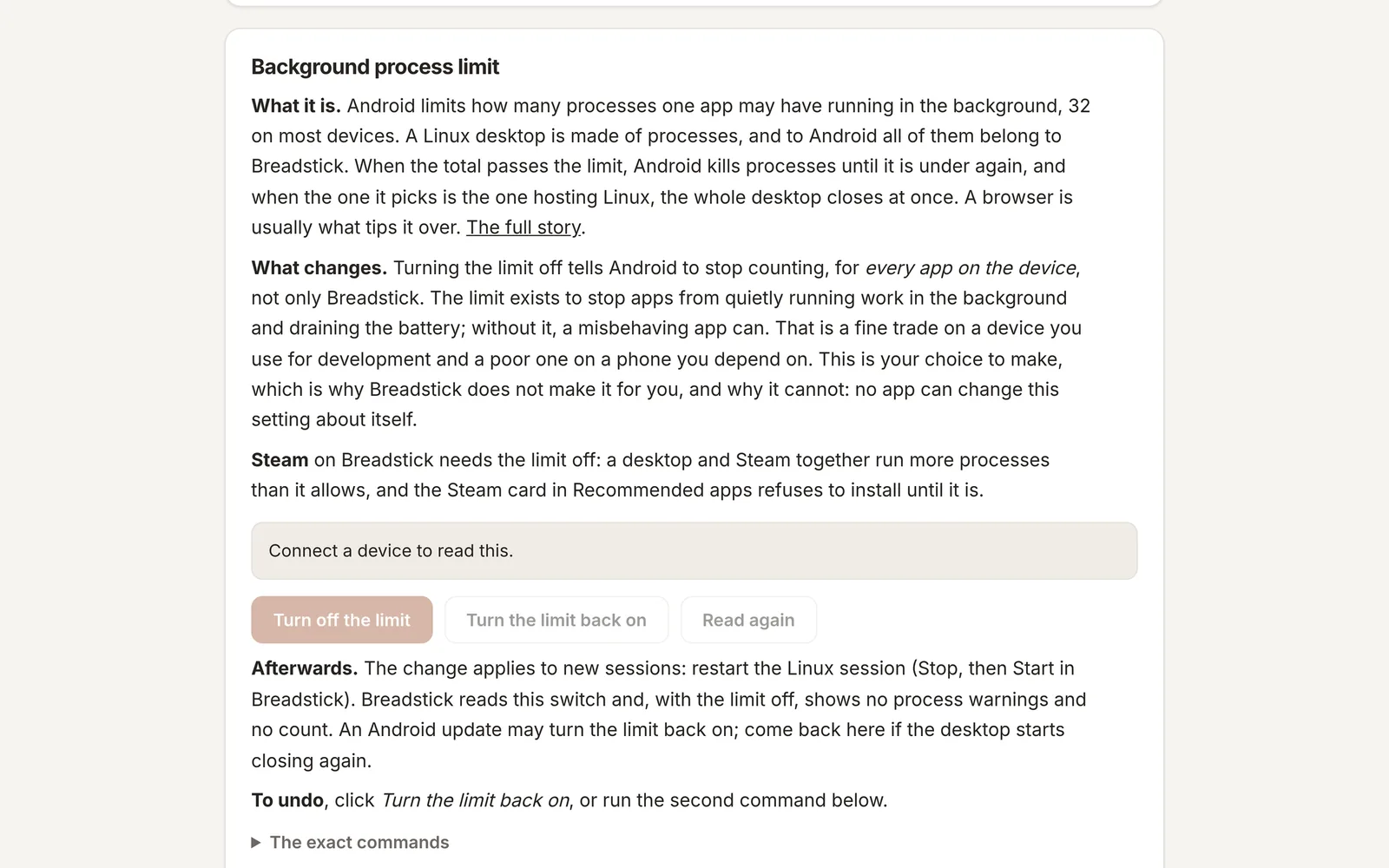
Each card is deliberately verbose. It says in plain words what the setting does, what changes on the device, what the exact command is before you click, how to undo it, and what Breadstick does differently afterwards. Nothing runs until you click that card’s button, and after every change the card reads the state back so you see the result rather than a promise.
What the settings are, and when you want them
The background process limit. Android allows an app 32 background processes on most devices, and a Linux desktop is made of processes. Pass the limit and Android closes the desktop. Turning the limit off is the fix, and it applies to every app on the device, not only Breadstick. That is fine on a device you use for development and a poor idea on the phone you depend on, which is why it is your choice and not something Breadstick does quietly. Steam on Breadstick needs it off.
Floating windows on phones. Samsung DeX and Googlebooks have freeform windows built in. Most other phones keep them switched off, and until they are on, Floating mode can only open apps full screen. The card tells you whether your device already has them, so you do not change something that does not need changing.
Virtual machine permissions. Breadstick 3.0 can run your Linux system in a real virtual machine on devices whose Android supports it. Two permissions guard that, and only a computer can grant them. The card checks first whether your device can run virtual machines at all, and whether your Breadstick is new enough. If it cannot, it says so and offers no button: the Standard engine is the one to use.
Logs and repairs
The page can also do a few things with the installed app. Collect logs gathers what a support email needs, Android’s side and Linux’s, into one text file that appears on the page before you save it, so you can read what is in it. Repair runs the same package repair Breadstick runs from its Settings, can stop the Linux session, restart the sound server, or force-stop the app when it is stuck. Nothing on the page deletes a Linux system or any of your data; that is a rule, not an oversight. Backup through the page is coming with 3.0.
Privacy
The page talks to the device through WebUSB, a browser feature, and the whole thing runs in the browser tab. Nothing about your device goes to breadstick.io or anyone else. The page stores the key your device uses to recognize the computer and the ticked box, both in your browser. The libraries it is built on are open source (Tango ADB), and their licenses are linked from the page.
adb still works
Every command the page runs is written out on its card, and the troubleshooting guide keeps the manual instructions. If you already have adb and a terminal, nothing changes for you. If you never wanted one, you do not need it anymore.
Firefox and Safari cannot do WebUSB, so this needs Chrome, Edge or Opera on a computer. The one thing the page cannot reach is a Googlebook, which has no USB device mode; for those the commands are the same ones each card shows, run with adb from another computer. If something on the page does not behave the way its card describes, tell us and attach the device report.

Written by Keith I Myers
Creator of Breadstick
Keith builds Breadstick, the app that brings real Debian Linux apps to Samsung DeX as native windows.
All posts by Keith I Myers →