Why Run Chrome in Breadstick Linux? Extensions, Profiles and DevTools

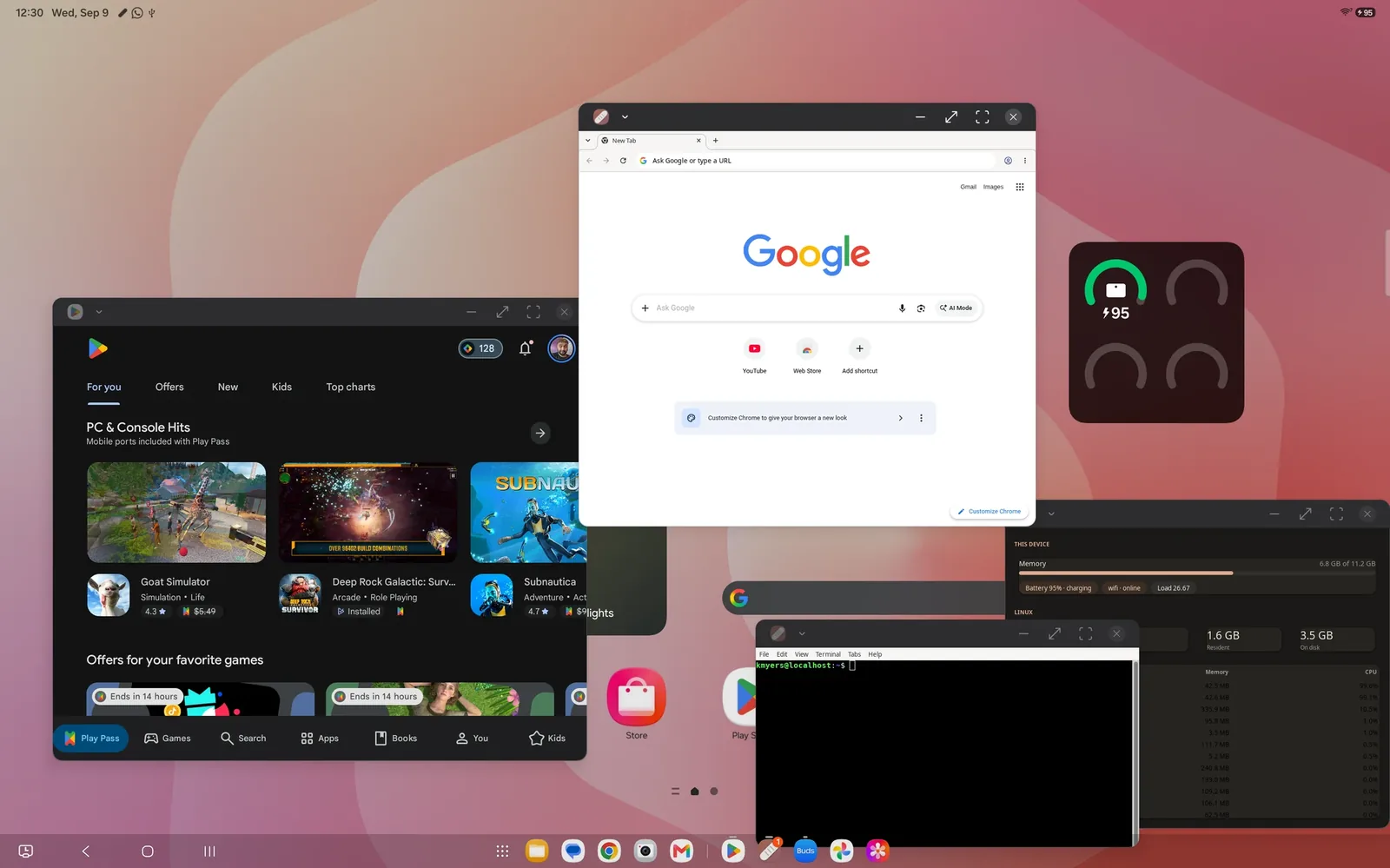
Your phone, tablet or Googlebook already has Chrome. So why would you install it again inside Breadstick? Because the Chrome in Breadstick is the desktop Chrome for Linux, the same browser people use on a Linux PC, and it does three things the built-in Chrome on Android and Googlebooks either cannot do at all or only does halfway.
1. Every Chrome extension, working properly
Chrome on Android phones and tablets does not support extensions. None. If your work depends on a password manager in the toolbar, an ad blocker, a grammar checker or a tool your company built, the Android version of Chrome has nowhere to put it.
Googlebooks do support extensions, but not every feature extensions rely on is there. Some extensions install and then do not work correctly, and password managers, the ones Android users tend to depend on the most, are among them.
Desktop Chrome in Breadstick runs extensions from the Chrome Web Store the way they run on a PC. Sign in, let Chrome sync, and your extensions arrive from your other computers.
That includes the newer kind of extension that drives the browser itself: browser automation tools, and the browser extensions that let AI assistants read and operate web pages through MCP. They need a complete desktop Chrome underneath them, and that is what they get here.
2. More than one Chrome profile
Chrome on Googlebooks does not support multiple Chrome profiles. If you keep work and personal browsing apart, or look after more than one Google account, you lose the clean separation that profiles give you on a PC: separate sign-ins, bookmarks, history, extensions and saved passwords for each one.
In Breadstick, Chrome’s profile menu works as it does anywhere else. Add a profile for work, one for personal use, one for a client, and switch between them. In Floating mode every Chrome window is its own window on your screen, so a work window and a personal window can sit side by side.
3. All of Chrome DevTools
On an Android phone or tablet, Chrome has no DevTools of its own. The closest you can get is remote debugging from a computer over USB, which means you need the computer.
Googlebooks have DevTools, but the support is half-baked: parts of it do not behave the way they do on a PC.
In Breadstick, DevTools is simply there: right-click and choose Inspect, or press Ctrl+Shift+I. Elements, Console, Sources, Network, Performance, Application, device emulation and Lighthouse all work as they do on a desktop, docked inside the window or undocked into a window of its own. For web developers, this is the difference between a device you can browse on and a device you can build on. If that is you, Coding on a Samsung tablet covers the rest of the setup: VS Code, Git, Node.js and the other tools that go with it.
Getting Chrome in Breadstick
Open Get apps in Breadstick and install Google Chrome. It comes from Google’s own repository, built for your device’s processor, so it keeps updating the way it would on a Linux PC. You can also tap Install on the Google Chrome page in our app catalog.
Turn off Android’s process limit first
Chrome is a heavy user of processes. It runs one for the browser, one for the GPU, one or more for each site you have open, and one for every extension that works in the background. Android limits how many processes an app may run, usually 32, and counts every Linux process as Breadstick’s. When the total passes the limit, Android closes the whole Linux session at once.
A signed-in Chrome that has just synced a dozen extensions can reach that limit by itself, so turn the limit off before you start:
- Easiest: open breadstick.io/breadstick-tools in Chrome on a computer, connect your device with a USB cable, and click Turn off the limit.
- By hand: with ADB set up, run this once:
adb shell settings put global settings_enable_monitor_phantom_procs false
The setting applies to every app on the device, not only Breadstick, and an Android update can switch it back on. Troubleshooting explains exactly what it does.
The browser you already know, all of it
None of this is a new browser to learn. It is Chrome, with your bookmarks, your passwords, your extensions and your profiles, running in real Linux on the device you carry. Get Breadstick on Google Play and see how much more of it you get.

Written by Keith I Myers
Creator of Breadstick
Keith builds Breadstick, the app that brings real Debian Linux apps to Samsung DeX as native windows.
All posts by Keith I Myers →